# AtlasCube
**Repository Path**: rexlai/AtlasCube
## Basic Information
- **Project Name**: AtlasCube
- **Description**: No description available
- **Primary Language**: Unknown
- **License**: MIT
- **Default Branch**: main
- **Homepage**: None
- **GVP Project**: No
## Statistics
- **Stars**: 0
- **Forks**: 0
- **Created**: 2026-09-24
- **Last Updated**: 2026-09-24
## Categories & Tags
**Categories**: Uncategorized
**Tags**: None
## README
# AtlasCube
*English | [Polski](README.pl.md)*
β οΈ Development has moved. This repository is an archive of the AtlasCube source up to v0.51.0. Current firmware, releases and the changelog now live at [atlascube.net](https://atlascube.net) β flash or update your device from [atlascube.net/flash](https://atlascube.net/flash), and see the [changelog](https://atlascube.net/changelog) for what's new. Issues and pull requests here are no longer monitored.
A hobby project β internet radio and smart clock running on a generic dev board (for now) with ESP32-S3 (AtlasCube). Streams internet radio, shows a clock, manages reminders, and exposes a web UI for configuration. Everything runs on the device with no cloud dependency.
π **[atlascube.net](https://atlascube.net)** β project home
| β‘οΈ Web UI demo |
Live, in-browser preview of the device web UI β click around without the hardware |
| β‘ Flash from browser |
Install prebuilt firmware over USB from a Chromium browser β no ESP-IDF, no esptool, no CLI |
| πΌοΈ Wallpaper gallery |
Download ready-made AtlasCube wallpapers grouped by display resolution |
| π§ Build from source |
Different display or your own pin layout? Pick the variant and set every GPIO in main/include/defines.h, then build with one command |
| π± Android remote app |
Phone remote β playback, EQ, events, layout editor (beta) |
---
## Screenshots
### Device screens
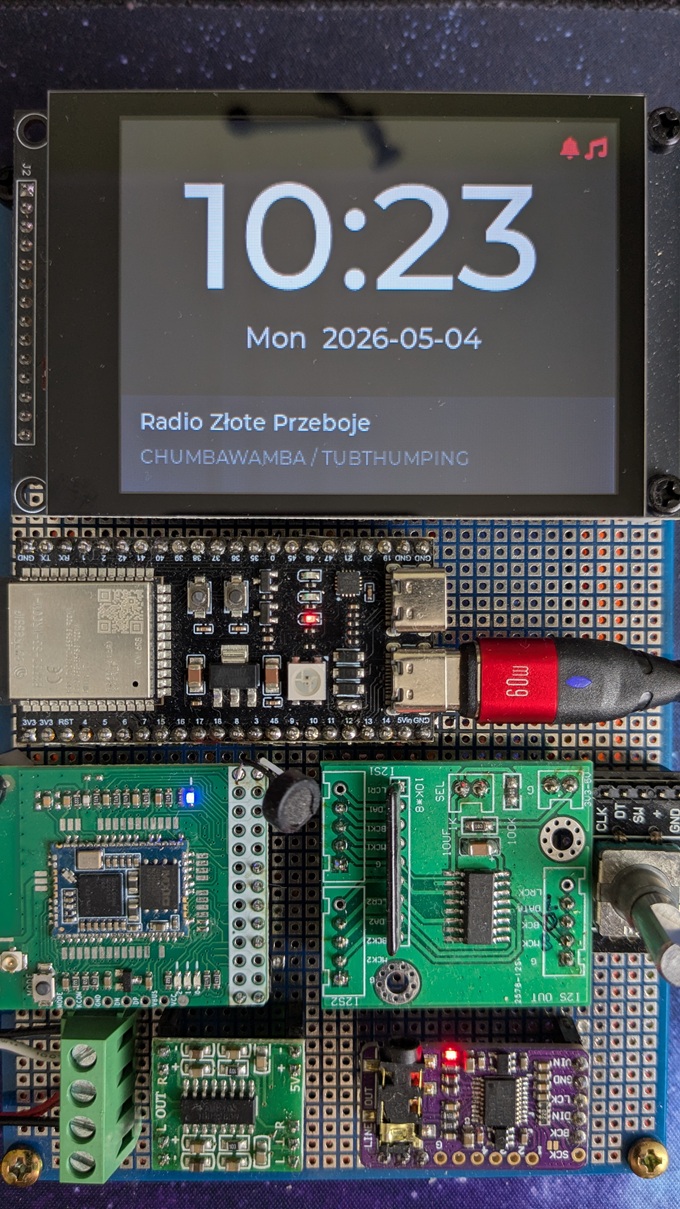
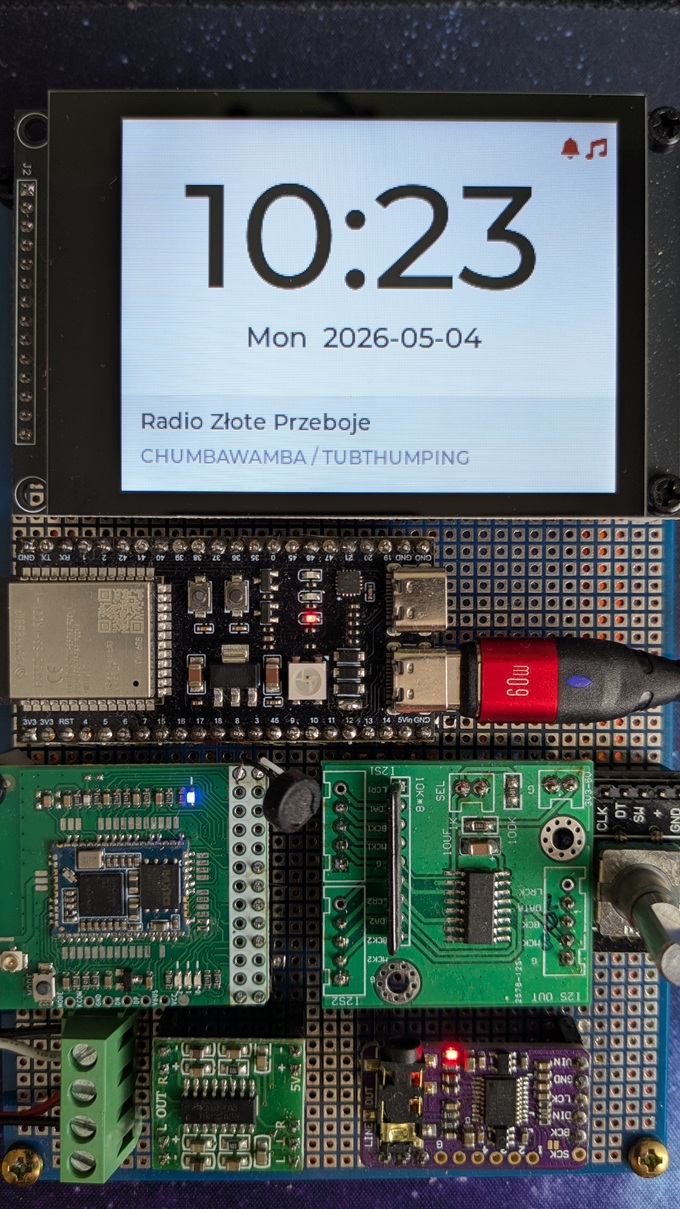
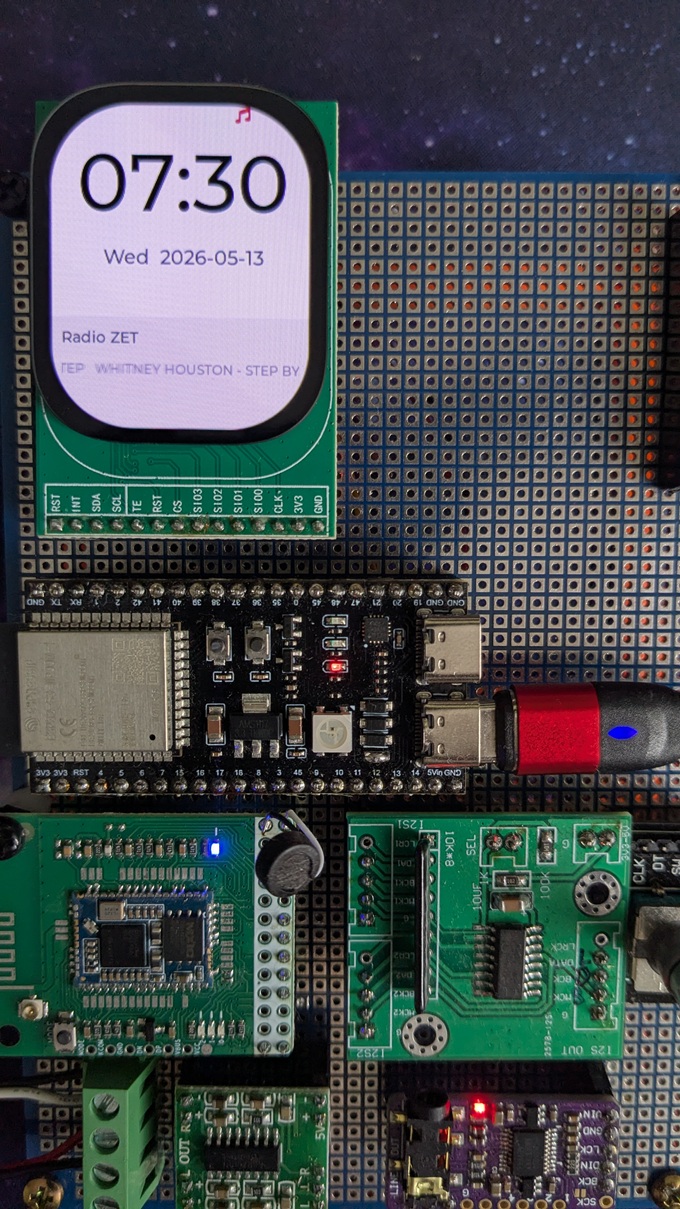
 Clock β dark |
 Clock β light |
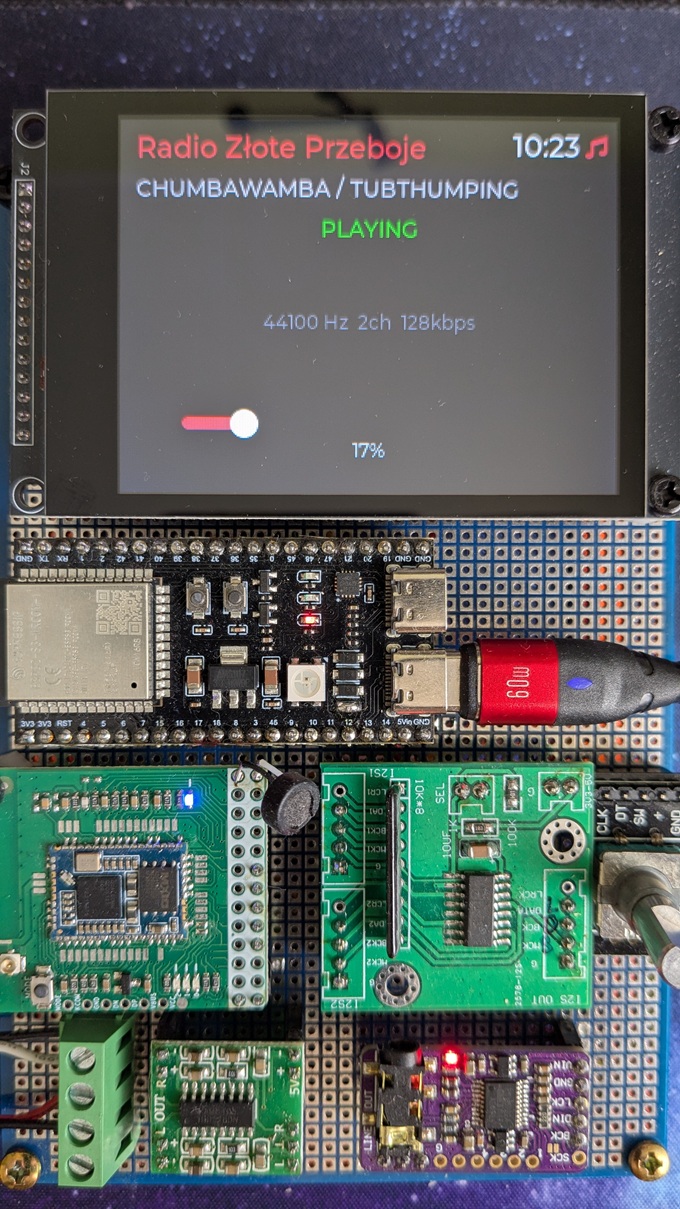
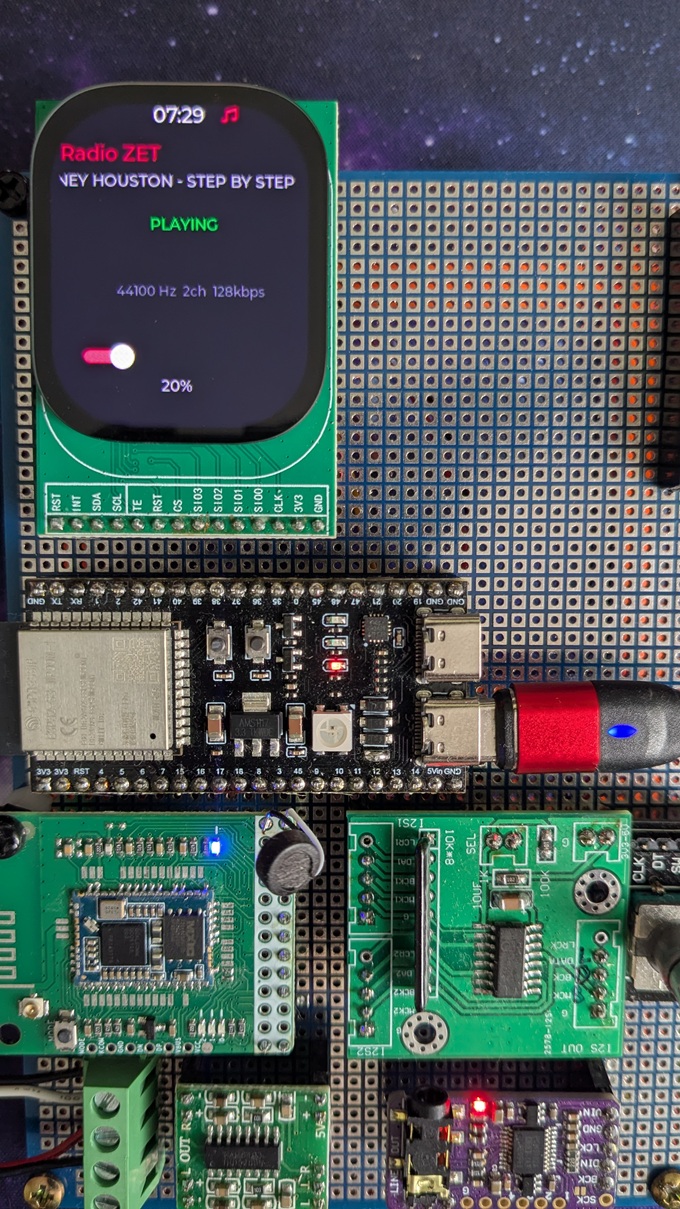
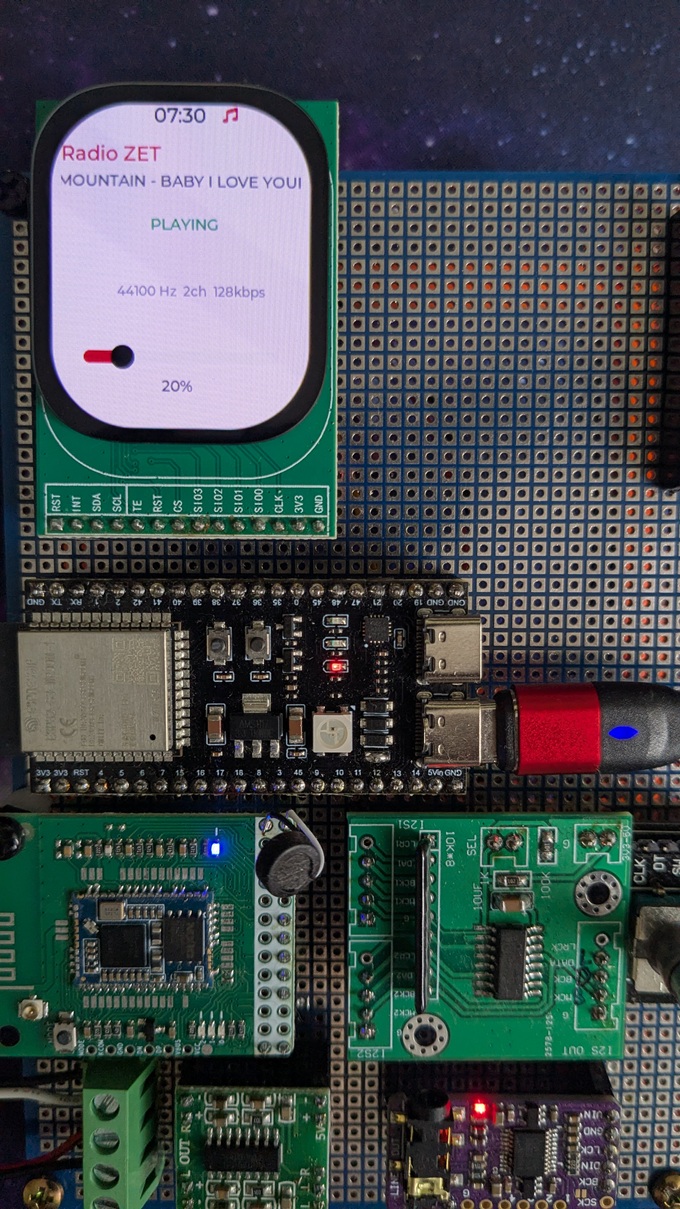
 Radio β dark |
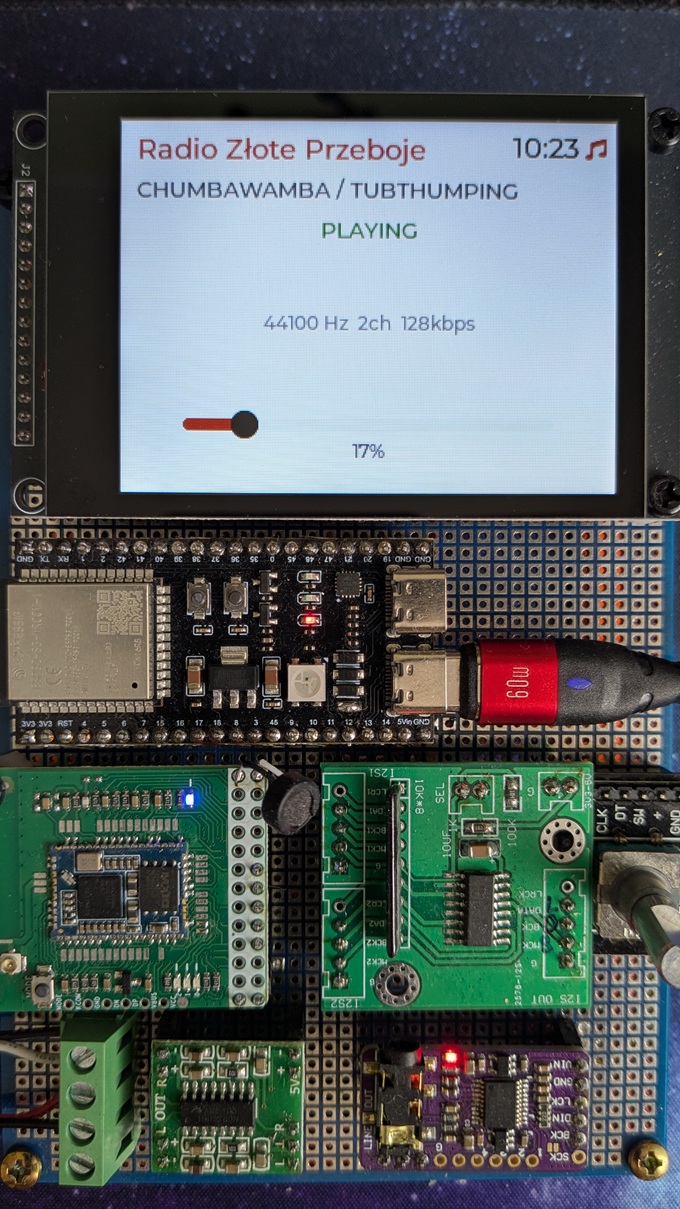
 Radio β light |
 Clock β dark |
 Clock β light |
 Radio β dark |
 Radio β light |
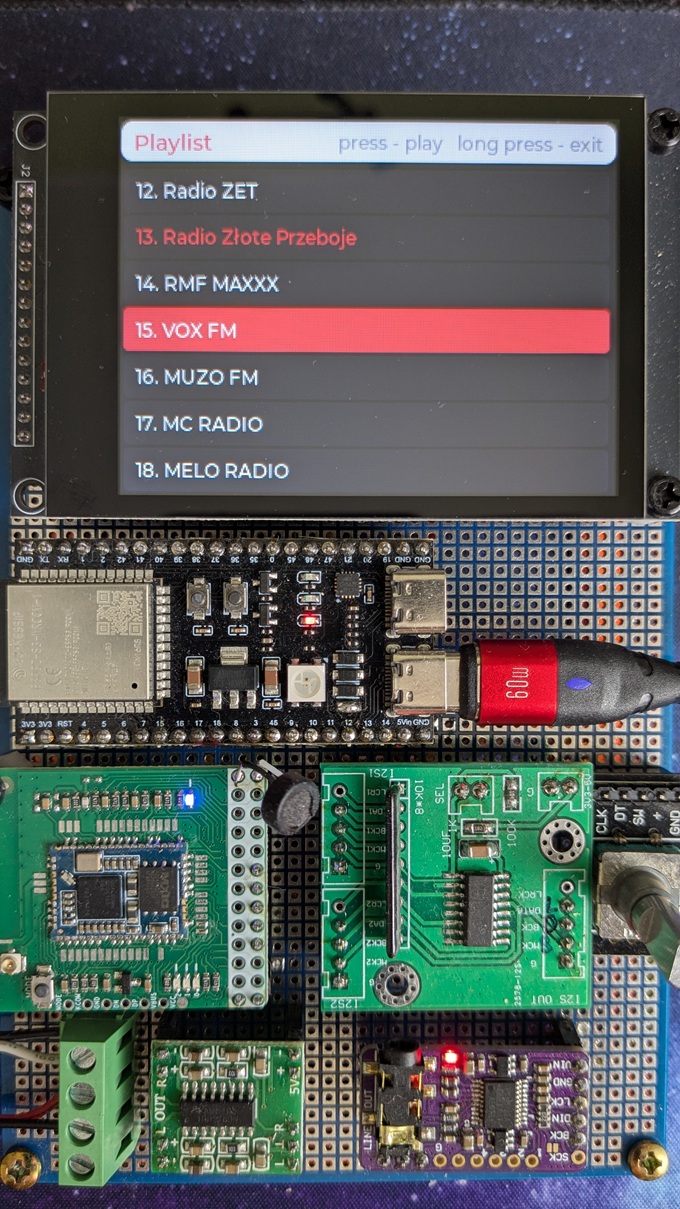
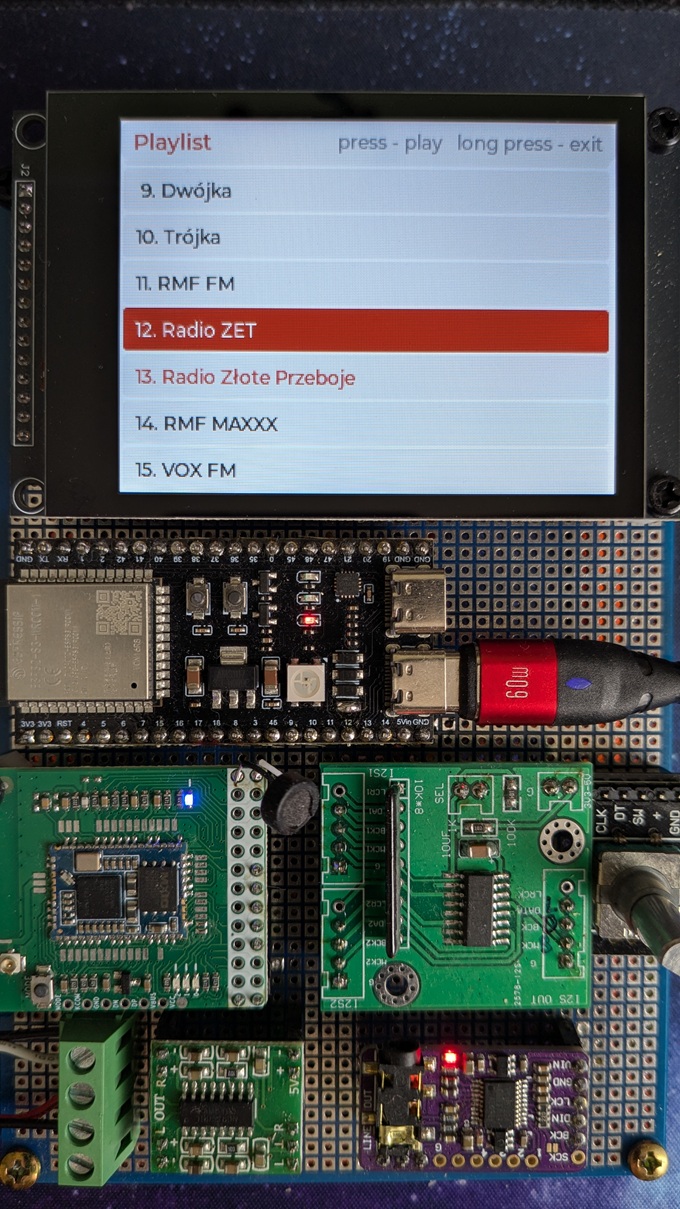
 Playlist β dark |
 Playlist β light |
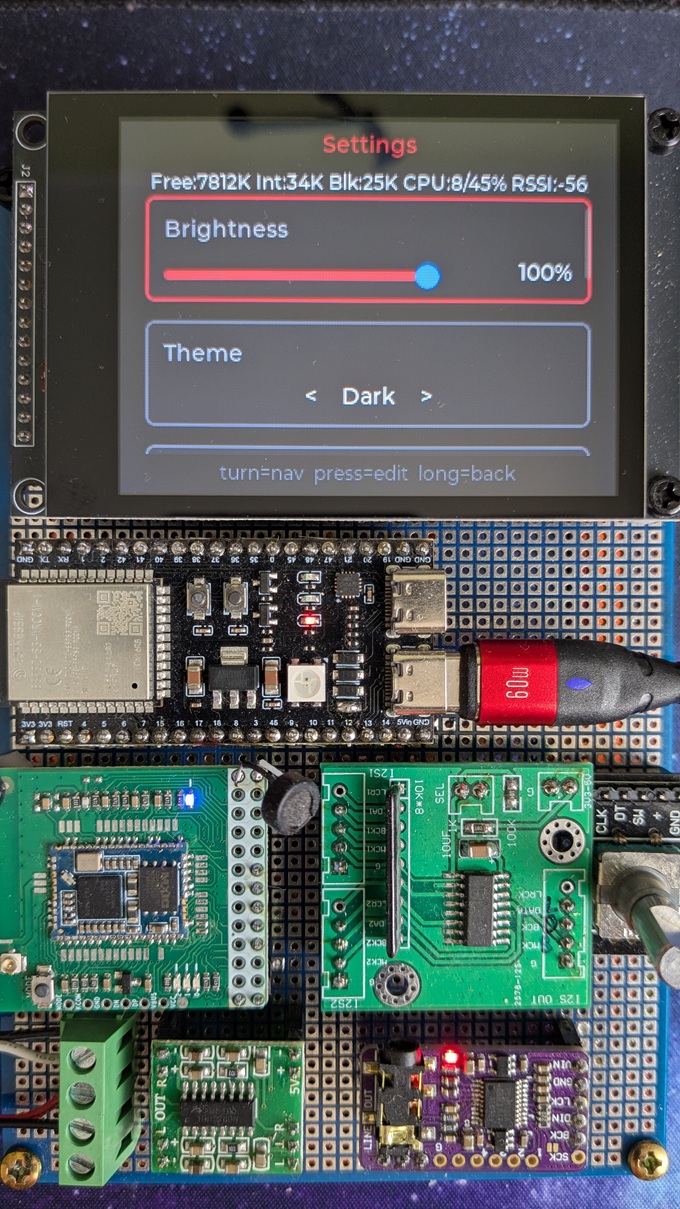
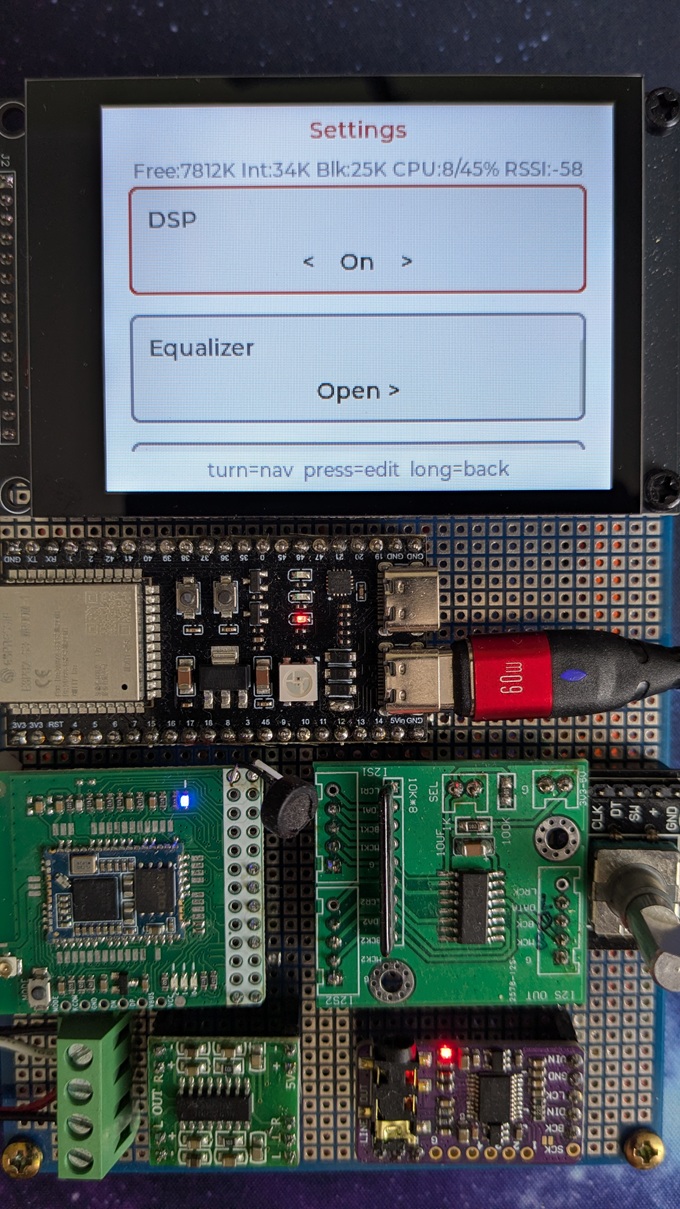
 Settings β dark |
 Settings β light |
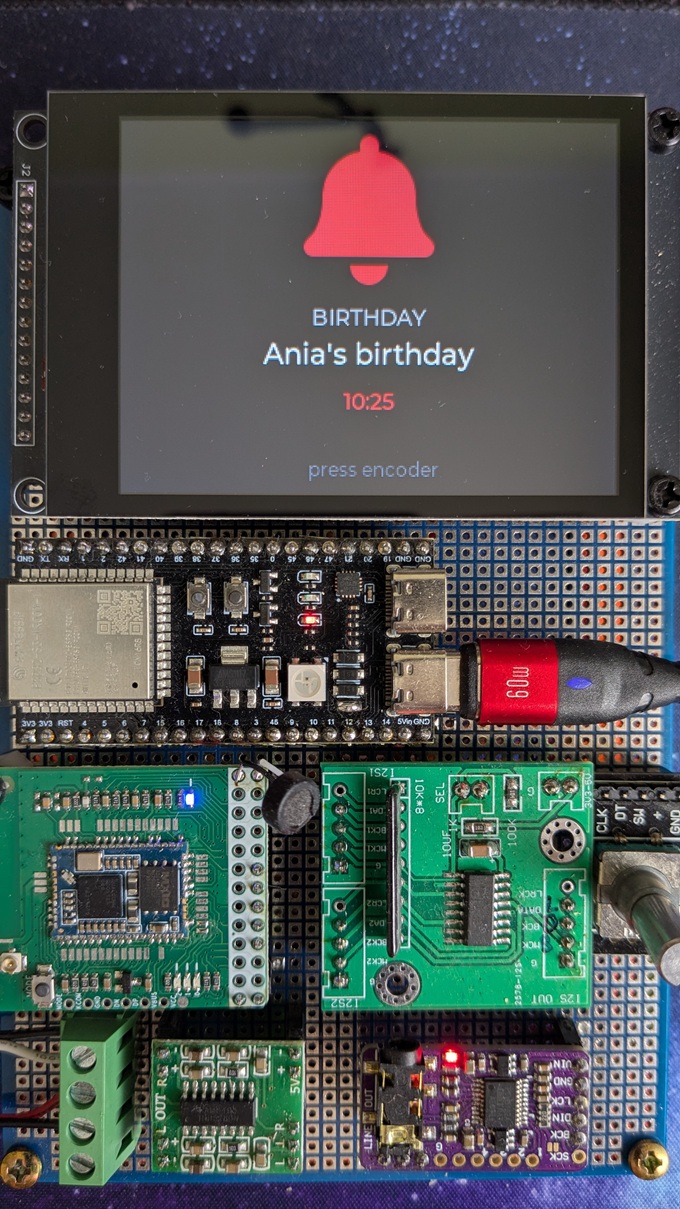
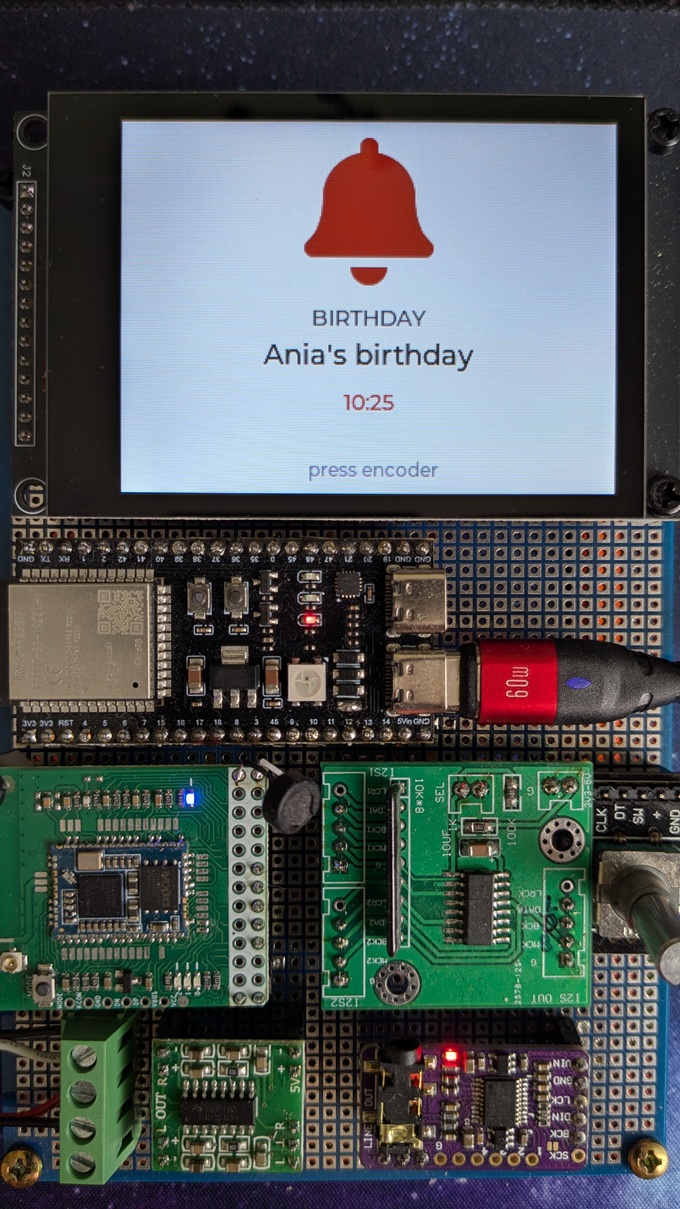
 Event β dark |
 Event β light |
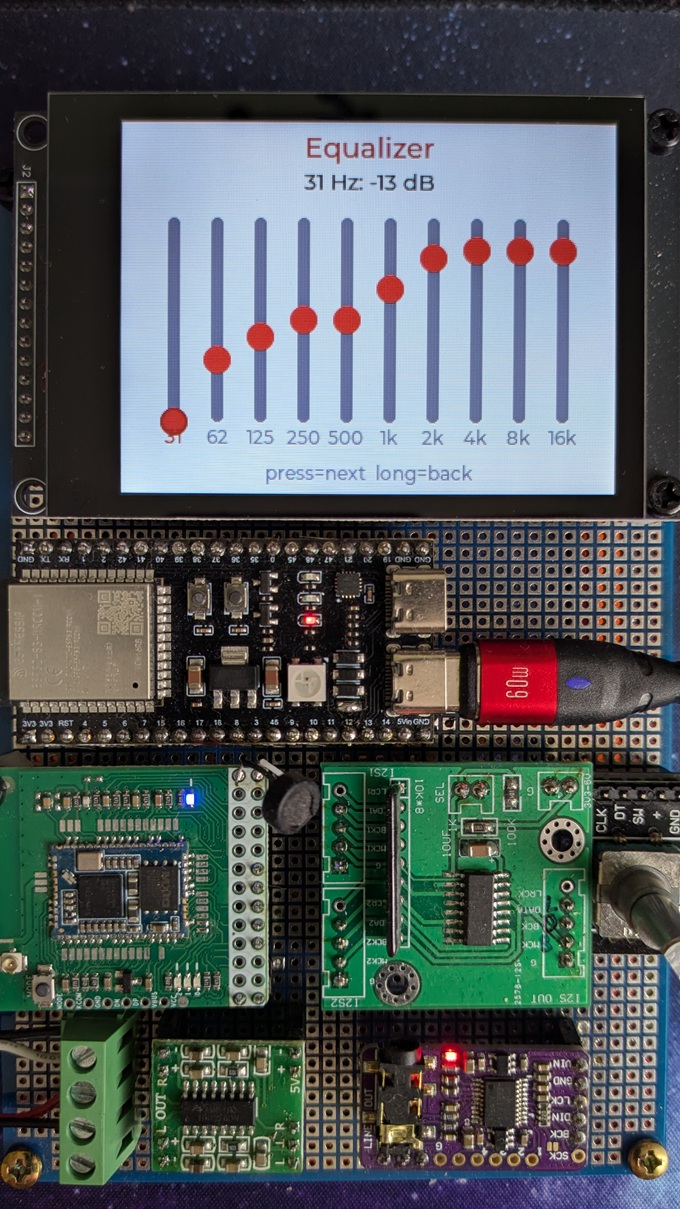
 Equalizer |
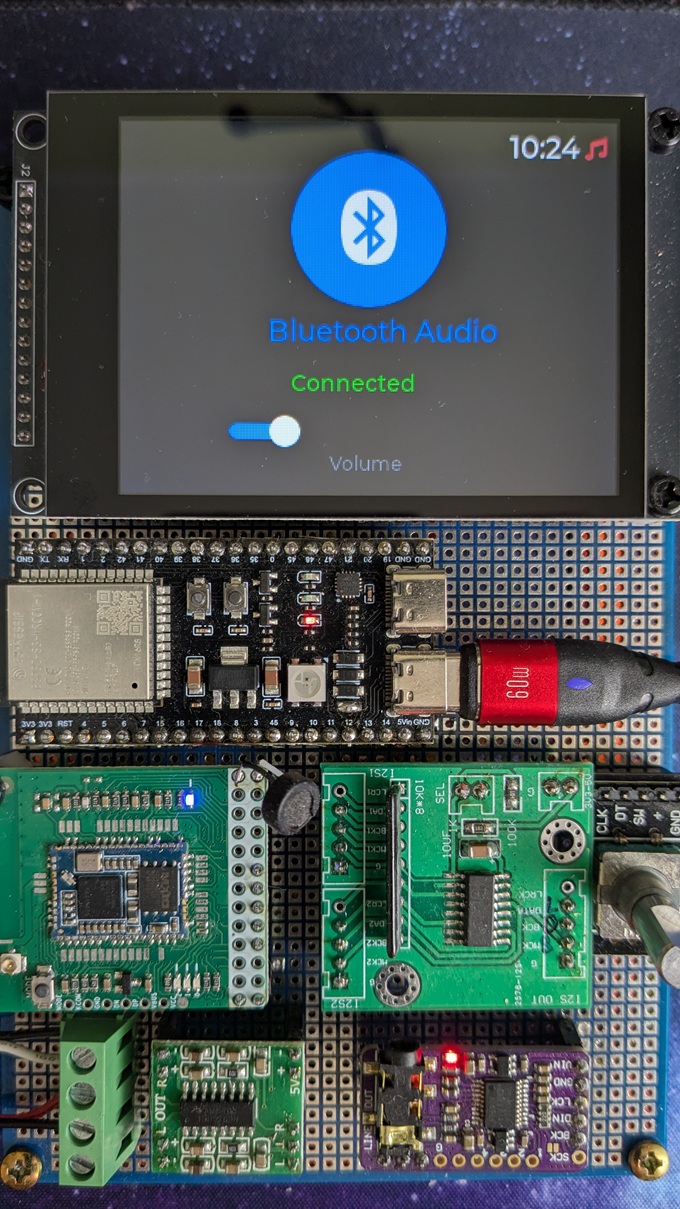
 Bluetooth |
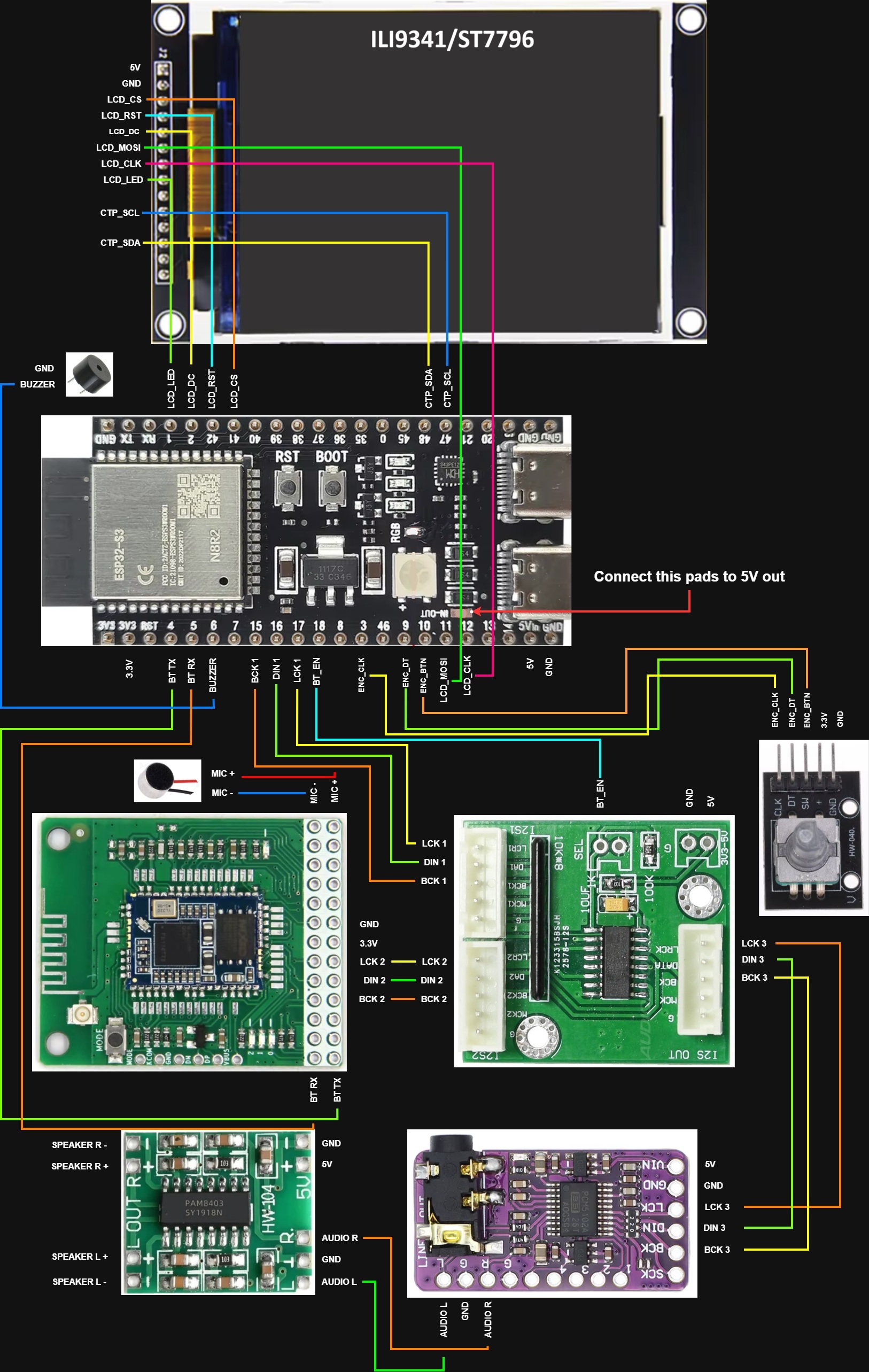
 Diagram with ILI9341 |
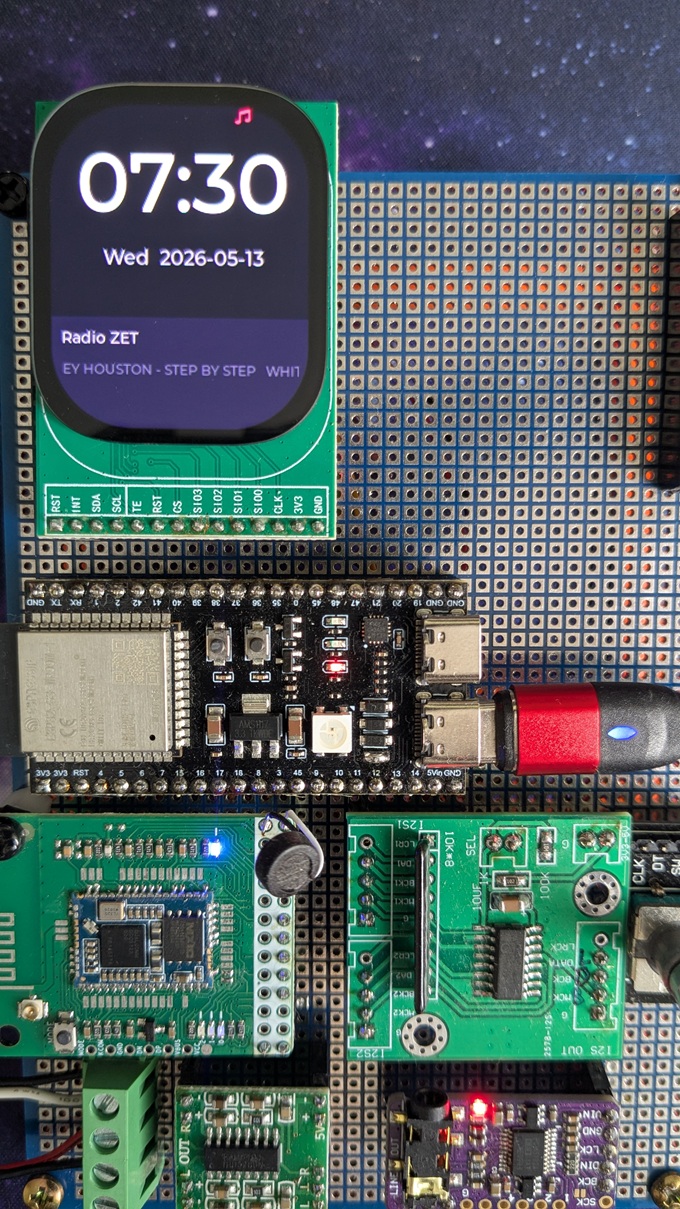
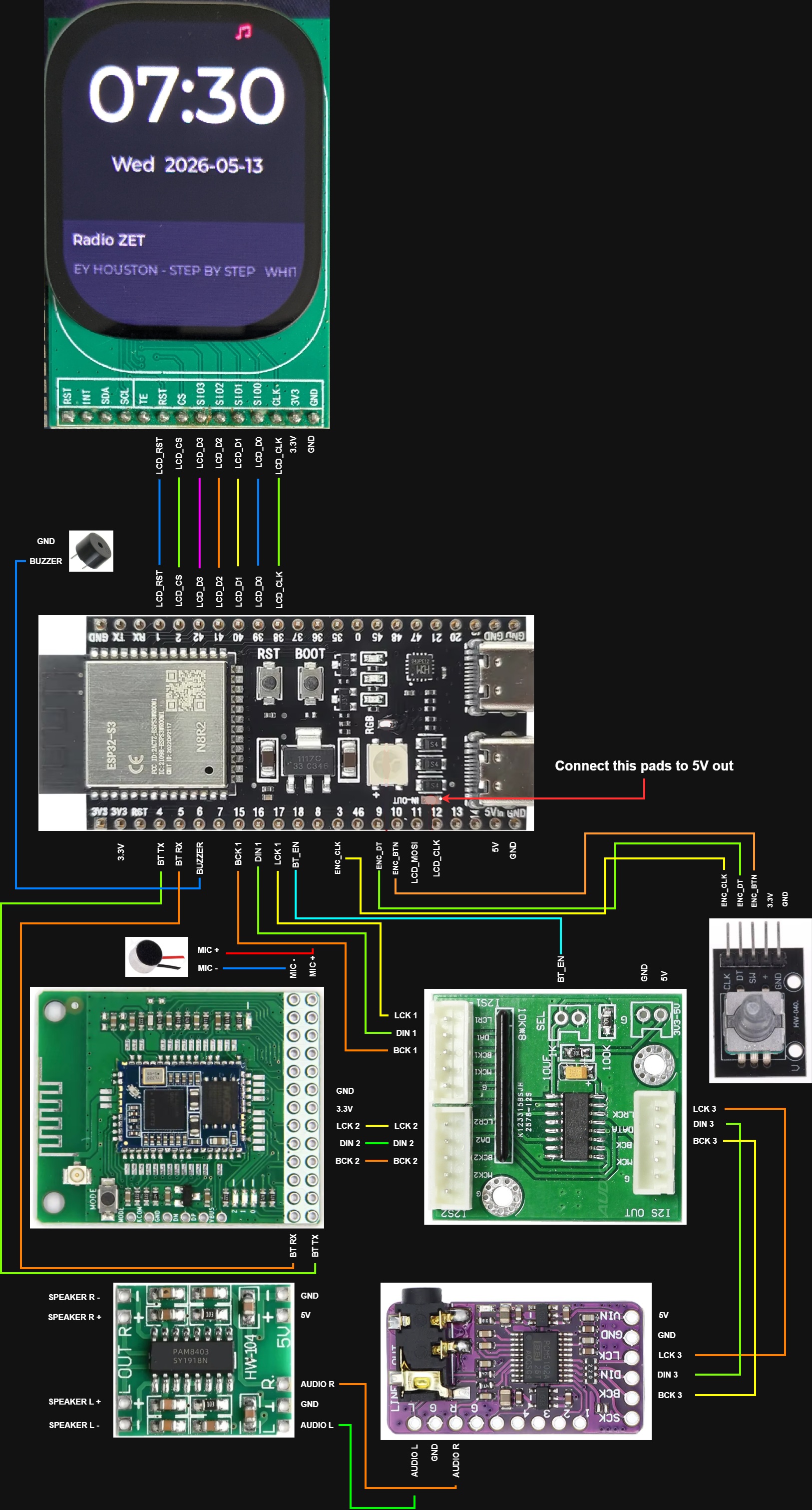
 Diagram with CO5300 |
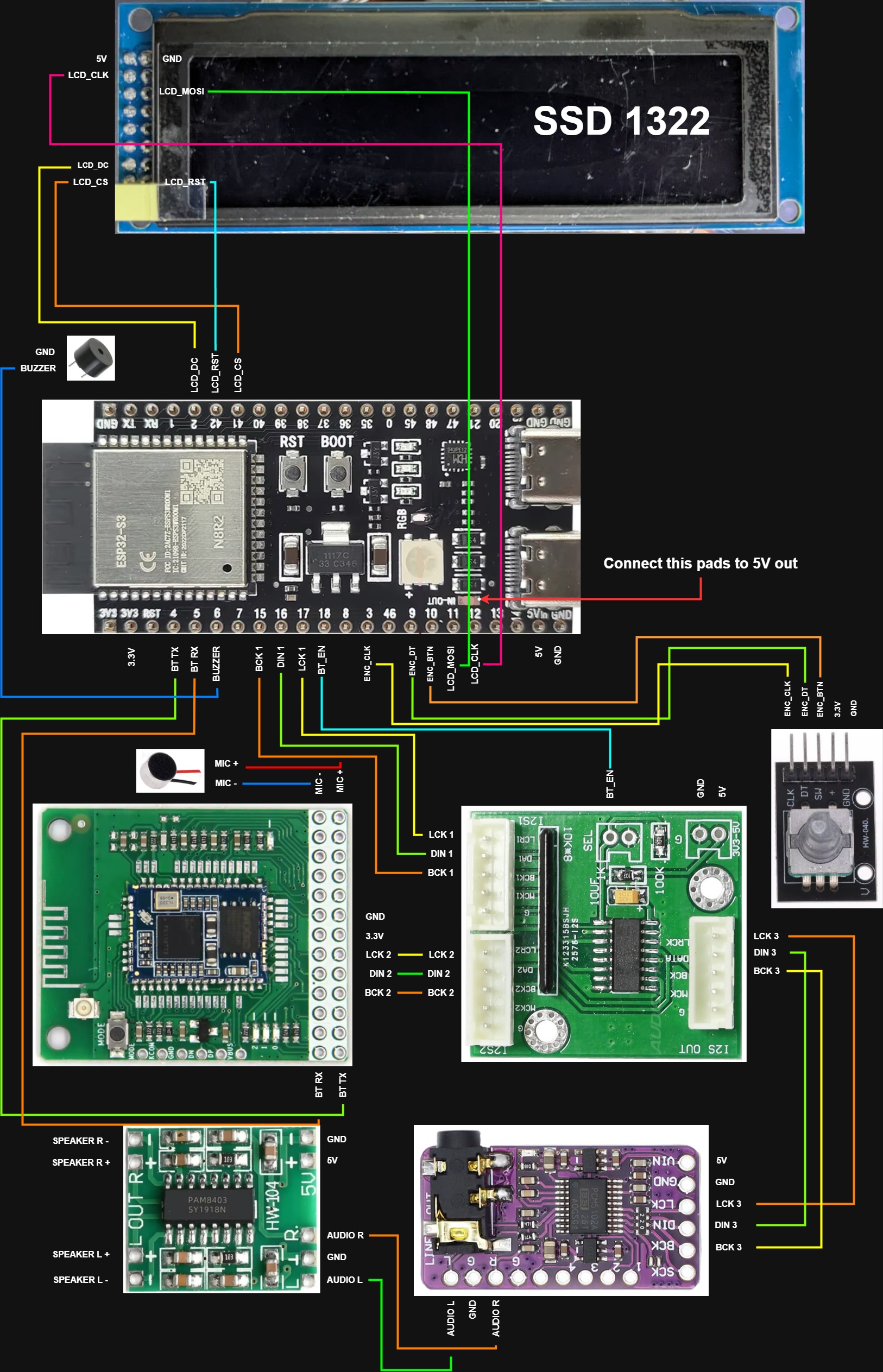
 Diagram with SSD1322 |
### Web UI
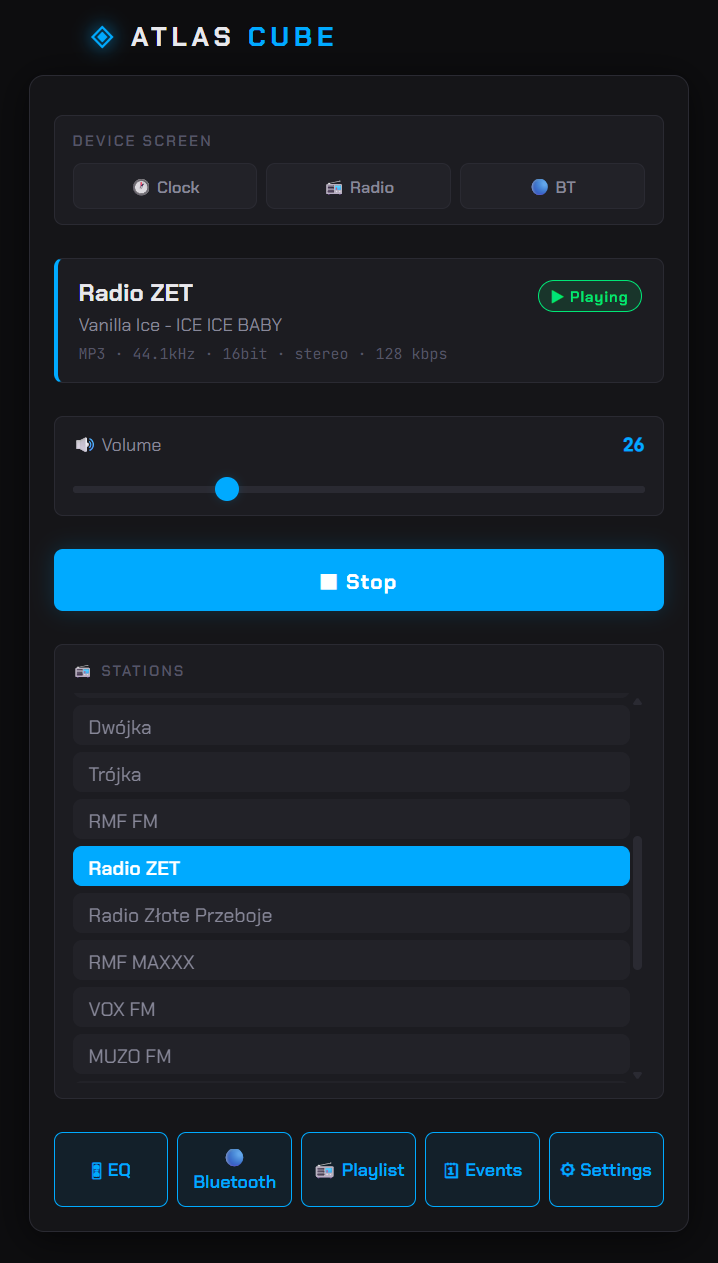
 Radio |
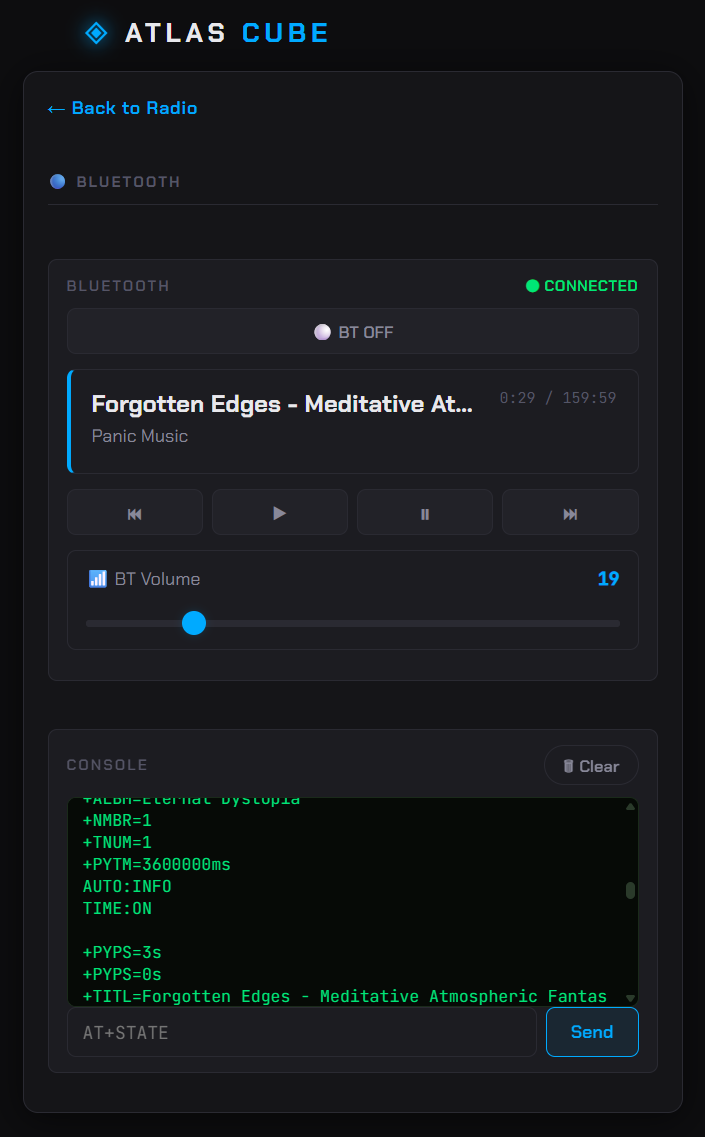
 Bluetooth |
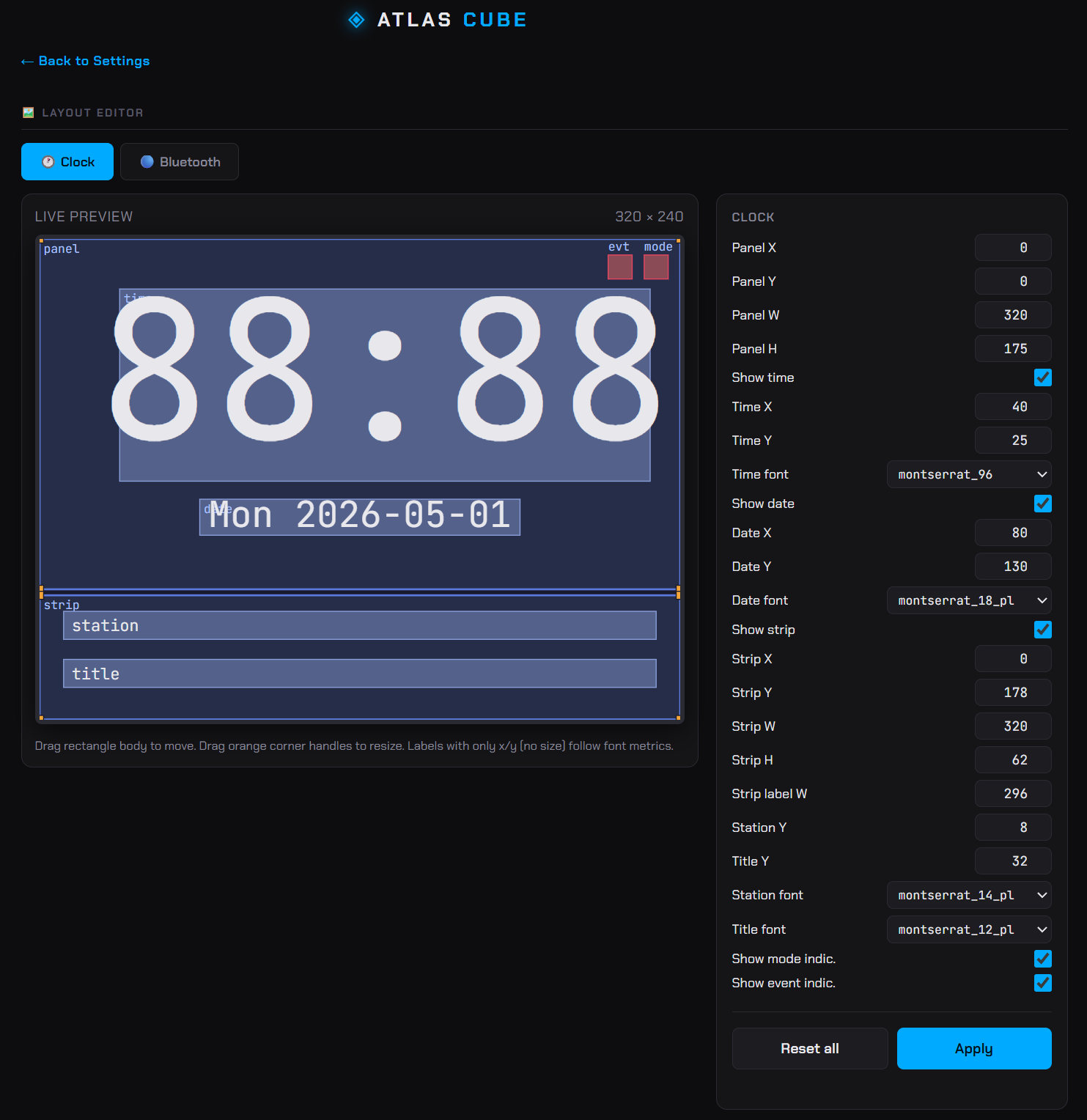
 Layouts editor |
 Files manager |
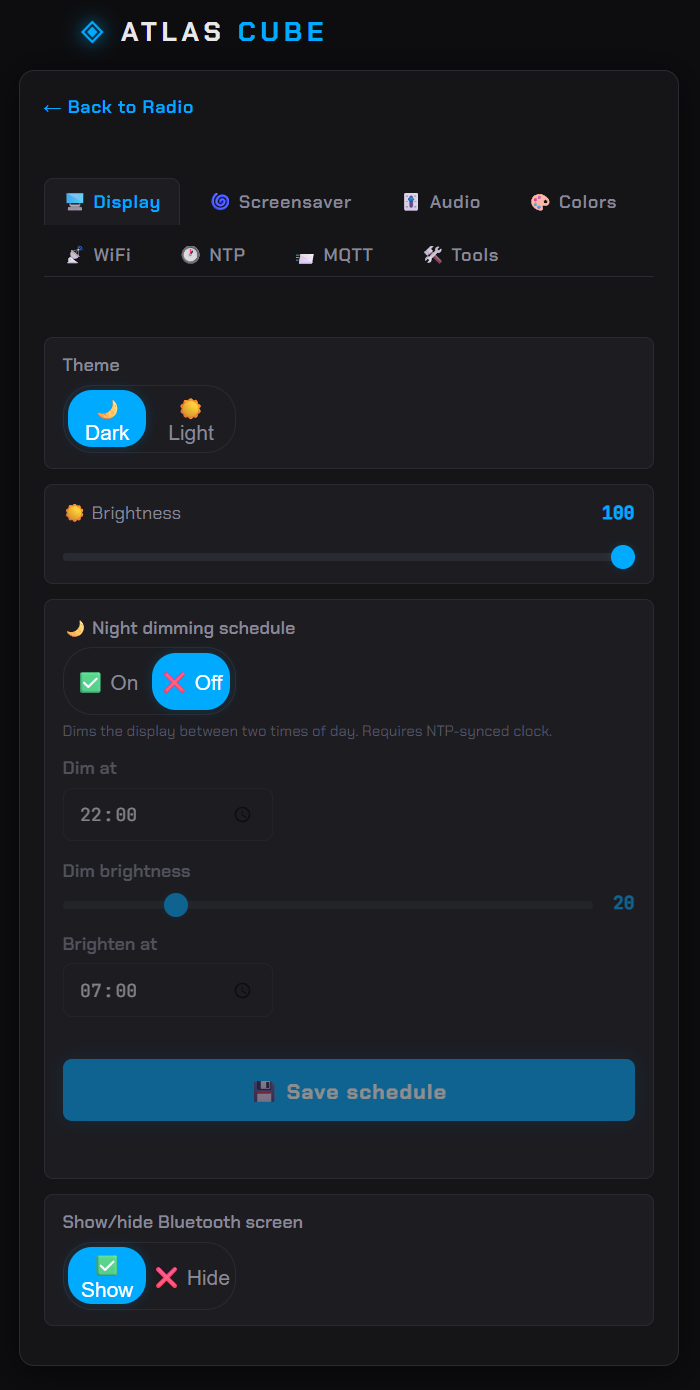
 Display |
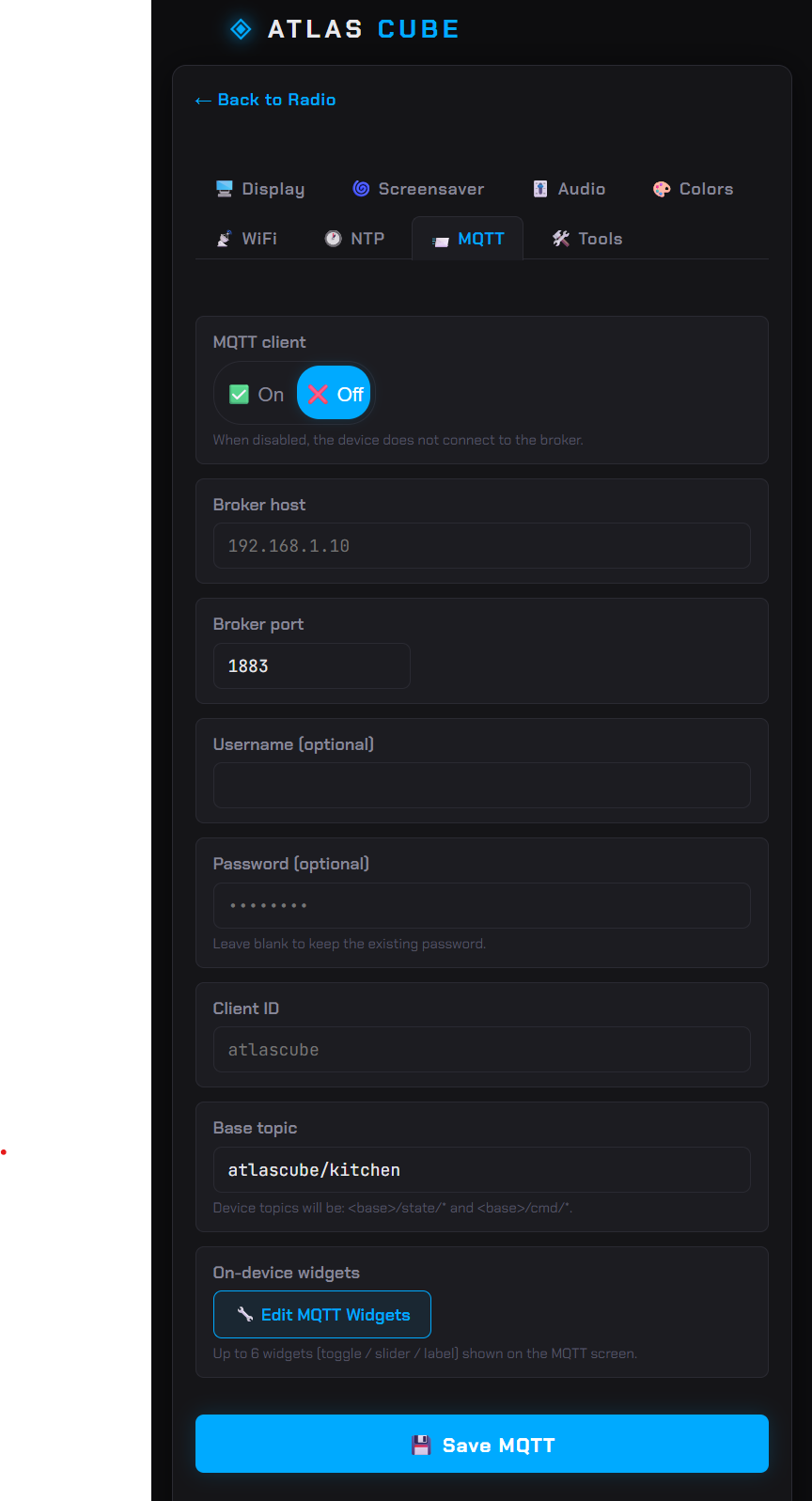
 MQTT |
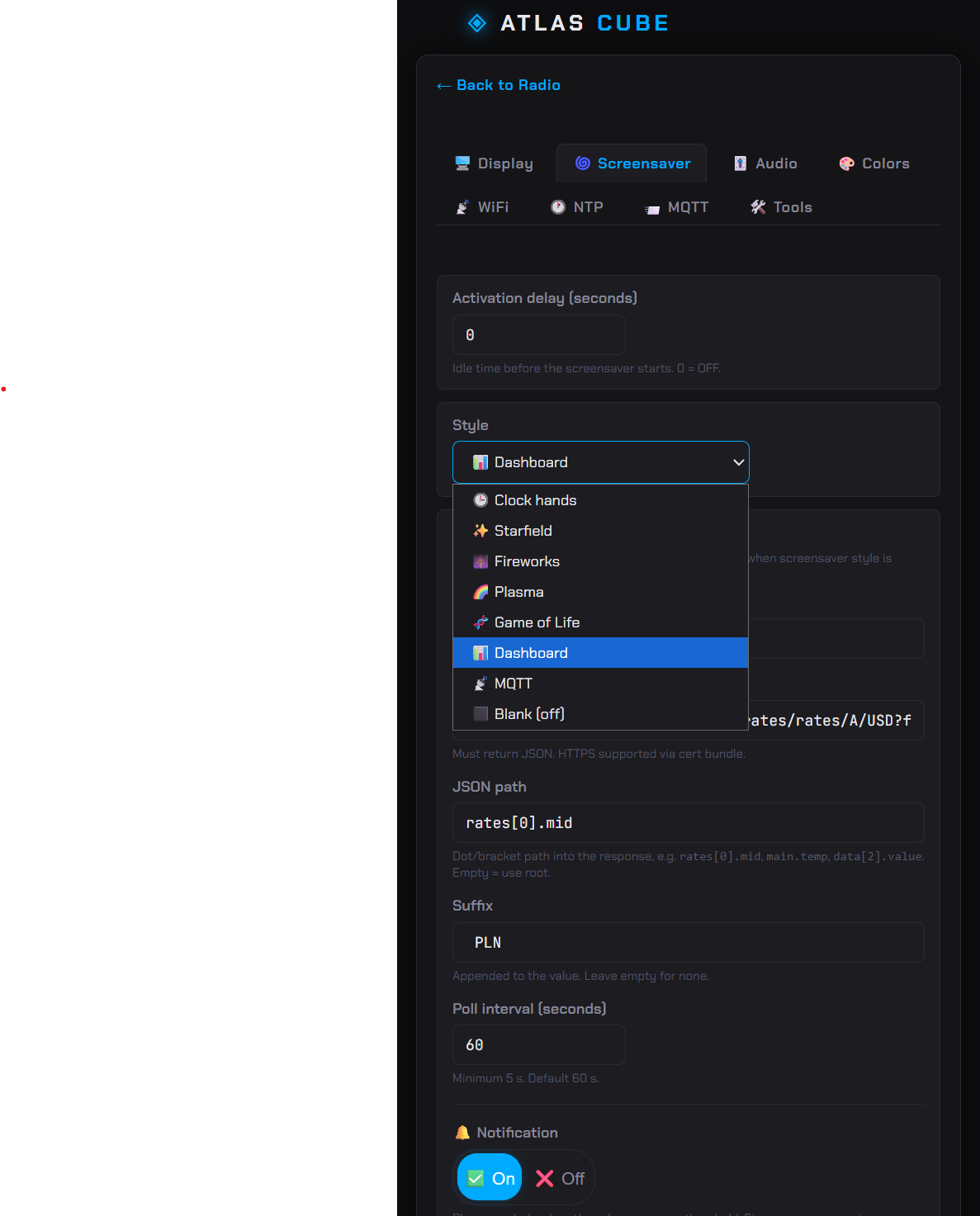
 Screensavers |
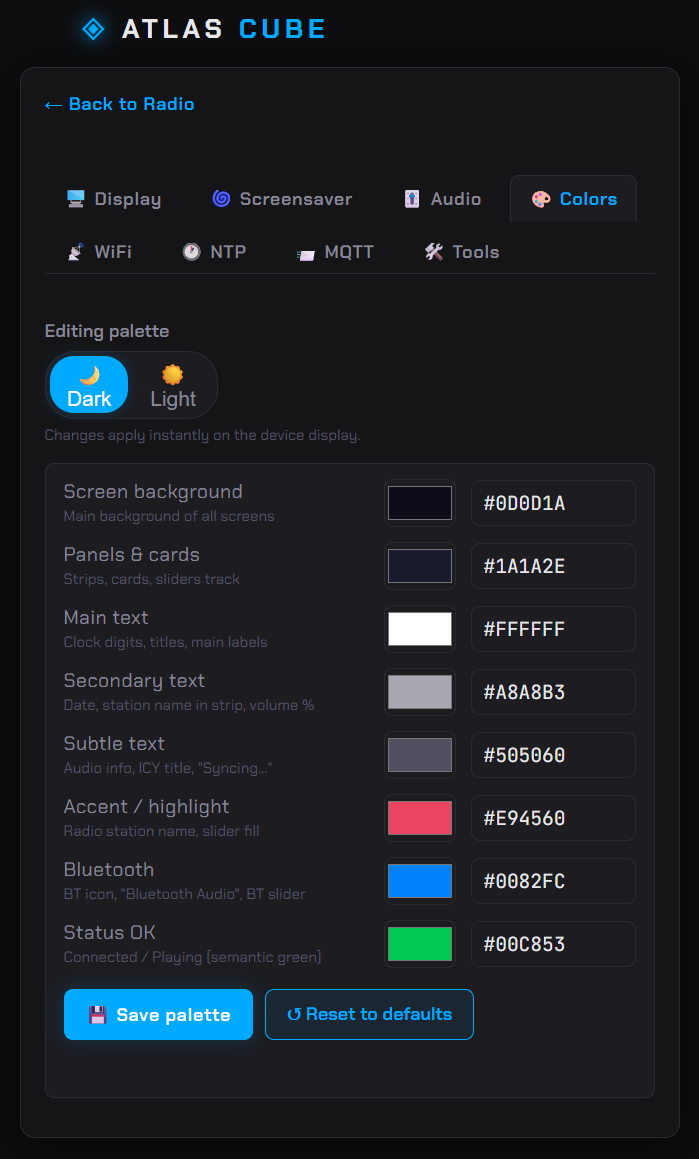
 Theme |
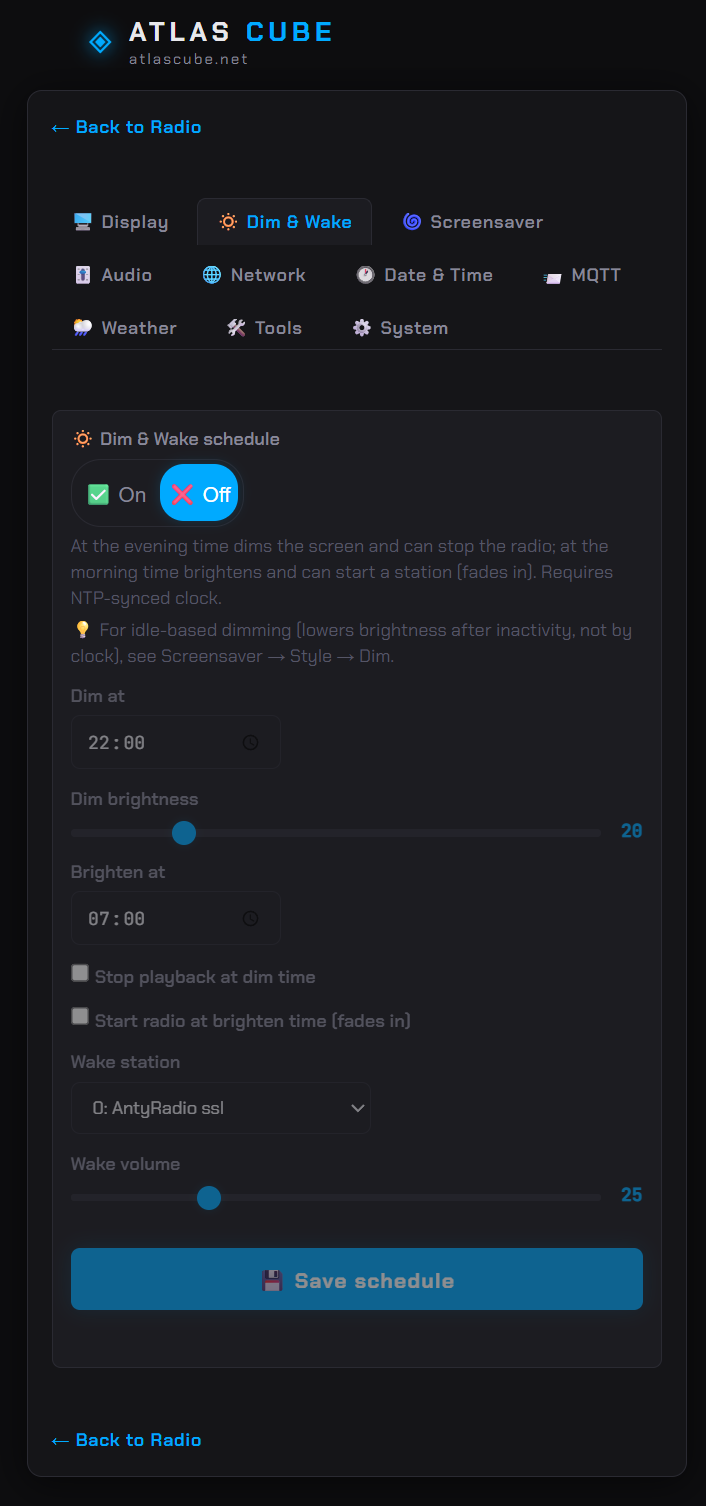
 Dim & Wake |
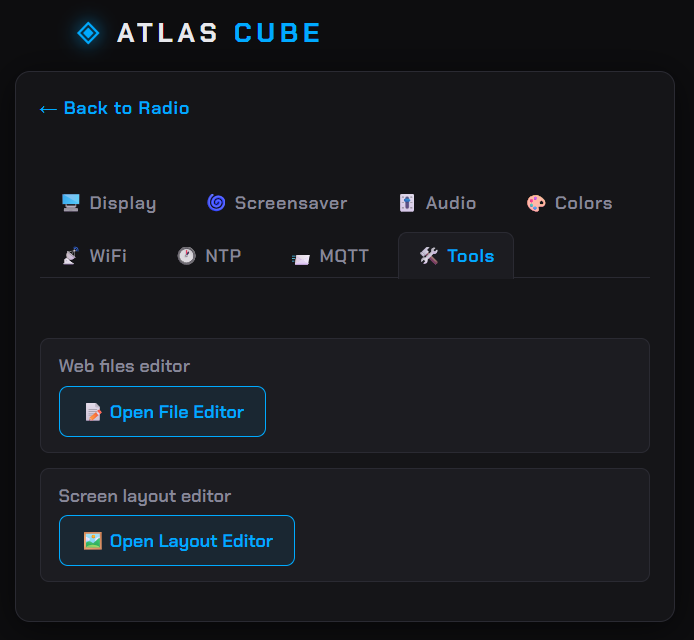
 Tools |
 Editor |
 Playlist |
 Events |
 Equalizer |
|
---
## Features
**Audio**
- Internet radio streaming β MP3, AAC, FLAC (via [esp-adf](https://github.com/espressif/esp-adf))
- HLS live streams β plays segmented `.m3u8` playlists alongside plain MP3/AAC/FLAC streams; the MPEG-TS segments are demuxed on the fly (AAC or MP3 audio, per the stream)
- Podcasts β plays a podcast episode as a **finite HTTP stream** (a distinct mode from endless radio: end-of-file is a clean stop, not a reconnect), with the episode title shown on screen, and **resumes mid-episode** via an HTTP `Range` request. The [Android app](https://github.com/marcinozog/AtlasCube-Remote/) is the catalog β it browses/searches feeds (iTunes search, Apple charts, or add-by-URL β all keyless), sends the episode's direct URL, and remembers the playback position; audio streams straight from the CDN to the device, exactly like a radio station
- ICY metadata β station name and now-playing track shown on screen and in the web UI
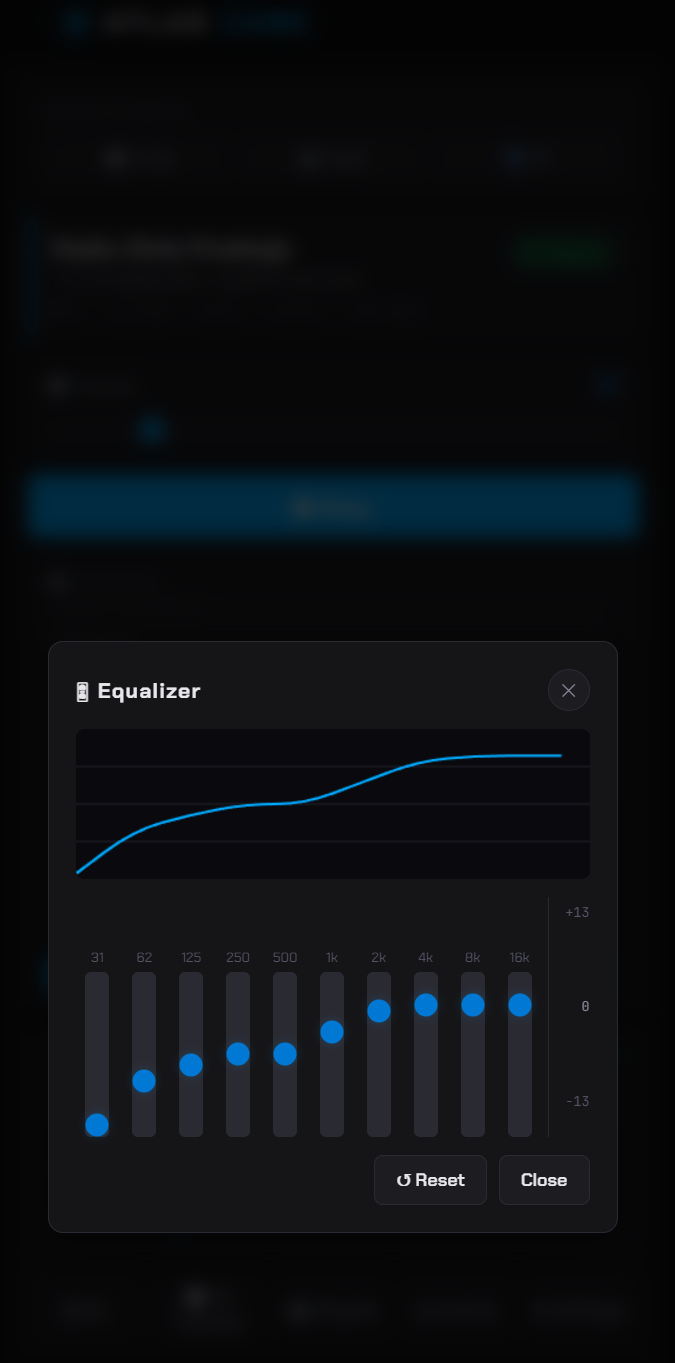
- 10-band parametric EQ + soft volume (custom DSP element, core 1)
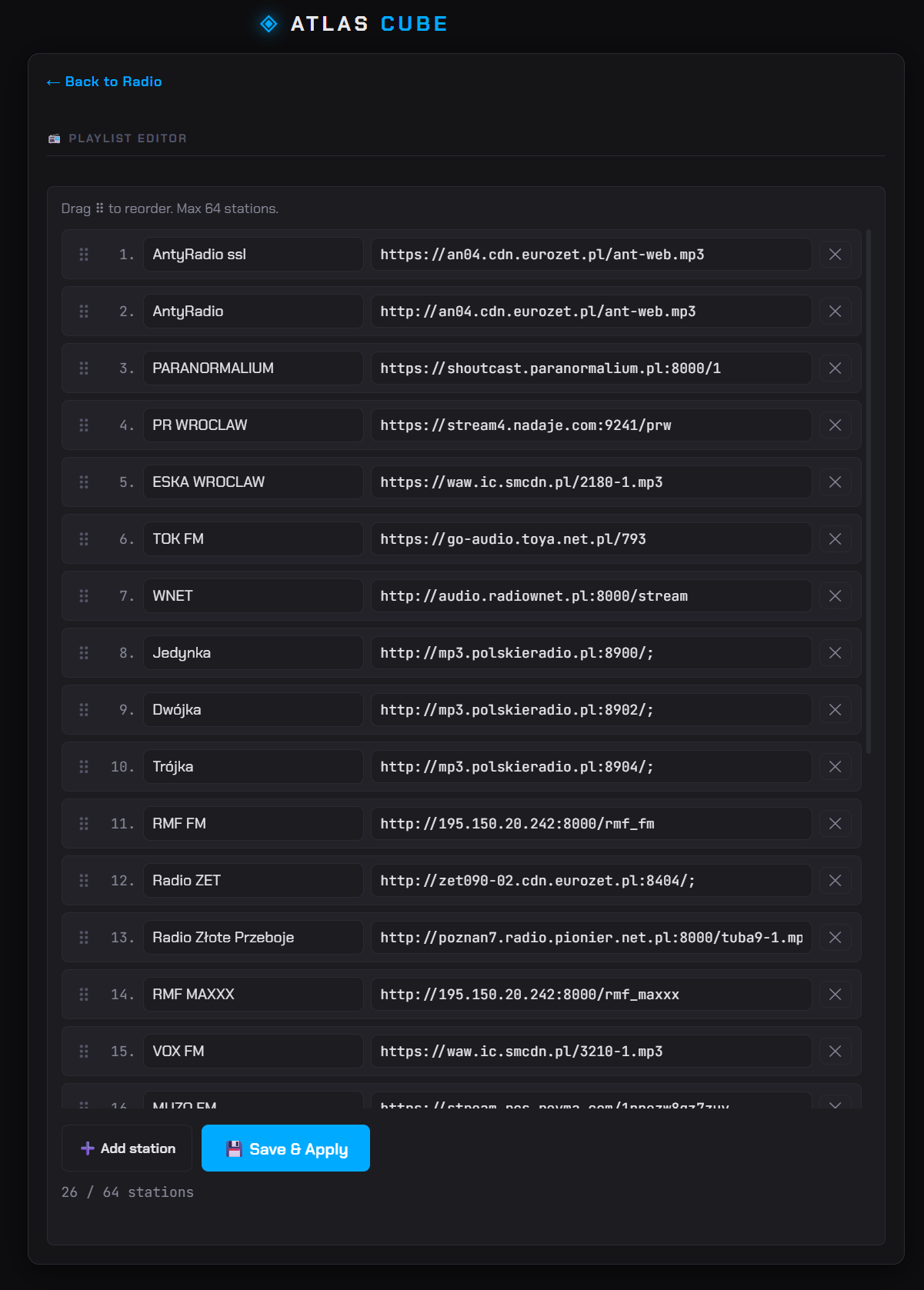
- Playlist β up to 512 stations, stored in SPIFFS
- Station logos β an optional per-station image shown on the radio screen; find one through the Radio Browser lookup or upload your own, and the web UI converts it to the panel's RGB565 format and stores it on the SD card
- Bluetooth audio β A2DP sink and HFP hands-free (external QCC5125 module, Bluetooth 5.1); supported codecs: LDAC, aptX HD, aptX LL, aptX, SBC, AAC
- SD card music player β play MP3 / WAV / FLAC / AAC files straight from a microSD folder. Browse subfolders, queue with shuffle and repeat (none / all / one), pause/resume, and auto-advance β all from the `/sd-player.html` web page. A third audio source alongside radio and Bluetooth (one active at a time); shares the EQ and volume with the radio output
- Hardware I2S source switching β a 74HC157D multiplexer routes either the ESP32-S3 or the QCC5125 I2S output to the DAC, selected by a single GPIO
- Automatic retry on stream loss
- Resume on boot β optionally replays the last station after a restart if the radio was playing when it powered off (opt-in, toggled in the Settings web UI)
**UI**
- LVGL-based GUI β supports ILI9341 320Γ240 (SPI), ST7789V 320Γ240 (SPI), ST7796U 480Γ320 (SPI), ILI9488 480Γ320 (SPI, 18-bit), CO5300 240Γ296 round AMOLED (QSPI), and SSD1322 256Γ64 mono OLED (SPI), switched via a single compile-time define
- Screens: home hub (clock face + adaptive controls), radio, SD player, playlist, equalizer, settings, Bluetooth, events, WiFi AP
- Home hub β the default screen: a clock face that adapts to the active source (radio / SD / BT), with a tap overlay to control playback and jump to the playlist / SD browser / BT / settings. It covers all sources from one screen; the per-source screens are optional (hide them from Settings β Display)
- Rotary encoder navigation (turn + press)
- Touch β capacitive CST816D (CO5300 round AMOLED) or FT6336U (ST7796U 480Γ320) on I2C, or resistive XPT2046 (SPI; shares the LCD bus or a dedicated SPI3, calibrated per UI profile); coexists with the rotary encoder, either input works at any time
- Swipe gestures β horizontal swipes cycle the home ring (home β bt β radio β sd β mqtt, skipping hidden screens); swipe-up opens settings (home) or the source list (radioβplaylist, SDβbrowser); detection runs through LVGL on the existing pointer indev, no per-chip glue
- On-screen controls overlay β tap a screen to bring up the playback controls (play/stop, volΒ±, prev/next), auto-hides after a short timeout; the home hub's overlay adds source/playlist/sd/settings buttons
- Audio VU meter β an optional radio-screen widget showing a real-time FFT spectrum computed from the live audio output; position it via the layout editor
- Analog needle VU meter β two independently placed left/right channel meters, each just a thin frame and a pivoting needle drawn over the wallpaper, so the meter faces can be painted right into the background image (e.g. a vintage amplifier photo); position and size each meter separately in the layout editor
- Stereo bar VU meter β two independently placed left/right channel bars fed by the same per-channel level as the needle meter (no FFT), each growing vertically or horizontally with an optional peak-hold marker; position and size each bar separately in the layout editor
- Weather widget β optional current temperature and conditions on the home screen, with day/night condition icons; choose keyless Open-Meteo or OpenWeatherMap (API key required), then configure coordinates, Celsius/Fahrenheit and refresh interval in Settings β Weather
- Configurable layout β position and style widgets in the visual web editor (stored as JSON); optional theme-aware background plates and adjustable opacity keep labels, the weather widget and station information readable over wallpapers
- Screen background β choose a gradient, a solid color, an **SD wallpaper image** (panel-sized RGB565 `.bin`), or fetch a JPEG directly from an internet URL. The layout editor can also browse the [online wallpaper gallery](https://atlascube.net/wallpapers/), automatically show images matching the configured display resolution, convert and install one to the SD card, and let you choose its filename. Built-in presets, on-boot/daily refresh, saving to SD and 0β80% dimming are available from the Settings web UI
- Custom boot splash logo β drop a panel-sized RGB565 `.bin` on the SD card to replace the built-in logo (auto-fit; falls back to the built-in logo if missing)
- Optional per-source screens in the home ring β show or hide the Radio, SD player and Bluetooth screens from the Settings web UI (the home hub stays, so the ring is never empty)
- 180Β° flip & colour inversion β rotate the whole screen upside-down (for inverted mounting) or invert panel colours (fixes batches where e.g. yellow shows as blue); both toggle from the Settings web UI and apply live, no restart
- Touch orientation β swap X/Y and mirror either touch axis independently of the display flip, for panels whose touch layer is mounted differently than the matrix (taps landing mirrored or on the wrong axis); also live from the Settings web UI
- Screensavers β kick in after a configurable idle timeout; choose from clock hands, starfield, fireworks, plasma, Conway's Game of Life, blank (AMOLED-friendly "off"), **Dim** (just lowers the backlight, keeps the current screen), **Dashboard**, or **Photo frame** (see below)
**Dashboard screensaver**
- A user-configurable ambient display that polls any JSON HTTP/HTTPS endpoint and renders a single value
- Configurable from the Settings web UI: **title**, **URL**, **JSON path** (dot/bracket notation, e.g. `rates[0].mid` or `main.temp`), **suffix** (e.g. ` PLN`, `Β°C`), and **poll interval** (β₯ 5 s)
- HTTPS supported out of the box via the ESP-IDF certificate bundle β works with public APIs that need no auth
- Defaults ship with the NBP USD/PLN exchange rate; swap the fields to read pretty much anything serving JSON (weather, crypto, home automation, GitHub stats, β¦)
- Polling runs in a dedicated FreeRTOS task only while the screensaver is active β no background traffic when another screen is shown
**Photo-frame screensaver**
- Turns the device into a digital photo frame β cycles through images stored on a microSD card
- Slideshow images are pre-converted to LVGL's panel-sized RGB565 binary format (by the Android app or the [`scripts/img2lvgl.py`](scripts/img2lvgl.py) helper) and dropped on the card. The photo-frame path deliberately does not decode JPEG/PNG slides (the JPEG decoder is used only for internet wallpapers), so even large slides cost no extra decode-time RAM
- Configurable from the Settings web UI or the Android app: **source folder**, **order** (sequential / random), **seconds per slide**, **reveal effect** and **reveal speed**
- The slow SD load is turned into the transition: each new image **develops over the previous one** with a configurable reveal β **top-down**, **wipe**, **dissolve**, **interlaced** (retro low-res β sharp), or **random per slide**
- Renders into two full-screen PSRAM buffers and repaints only the area that changed each tick, so it stays light even while the radio streams
- Settings apply live β changing the effect/order/timing updates the running slideshow within a slide, no need to leave the screensaver
- Manage slides from anywhere: browse / upload / rename / delete them via the web **SD file manager** (Settings β Tools) or the Android app, which also converts and uploads phone photos in one step
- Requires a microSD card wired to the build's SDMMC pins (1-bit mode)
**Events & reminders**
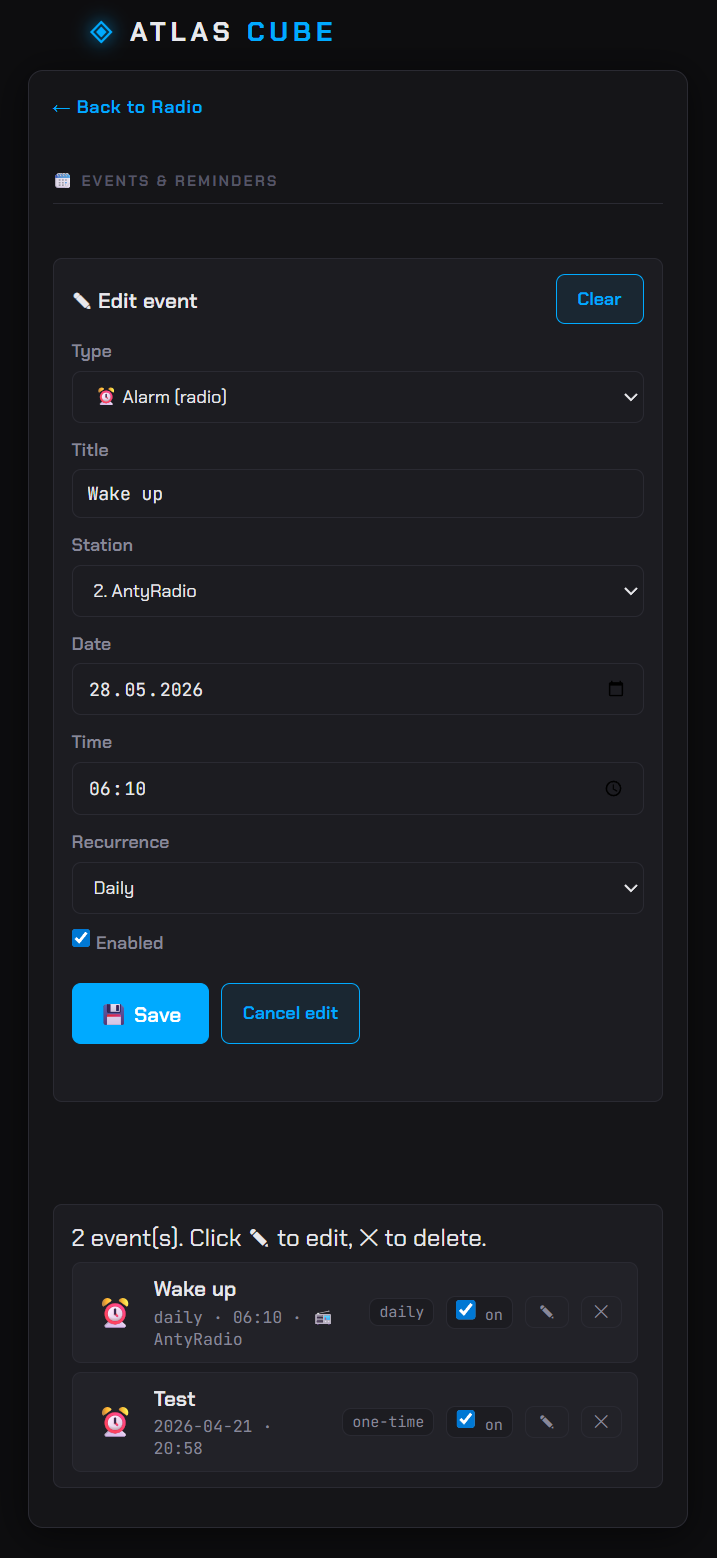
- Birthdays, namedays, anniversaries, plain reminders, voice notifications and playback schedules
- Recurring: daily / weekly / monthly / yearly
- On-screen fullscreen notification + buzzer melody at trigger time; melodies are programmable in firmware (web-based editor planned)
- Playback schedules β start a radio station or an SD file/folder at a configured time, with an optional stop time. Start and stop are linked internally but shown and edited as one item; one-time, daily and weekly ranges can cross midnight
- Voice notification type β plays a spoken clip from the microSD card at trigger time, briefly interrupting and then restoring the radio/Bluetooth source. The Android app synthesizes the speech on the phone (TTS) and uploads it; each clip is a single file named after a readable slug of the event title (e.g. `voice/wake-up-call-a3f9c1.wav`), so the card stays browsable in the file manager. Both the web and app editors can preview the clip
- CRUD via web UI
**Connectivity**
- WiFi STA with AP fallback (first-boot setup via 192.168.4.1)
- HTTP server + WebSocket for real-time state sync
- mDNS β reachable at `.local` in STA mode (default `atlascube-xxxx` derived from the MAC, editable in Settings β WiFi); advertises an `_http._tcp` service with a TXT record carrying the `.local` name for discovery clients (e.g. the Android app's NsdManager)
- NTP time sync with configurable timezone
- Web UI served from SPIFFS (no internet required after flash)
- MQTT client β remote control of the radio (play/stop/volume/station) plus up to 6 configurable widgets (toggle / slider / label) on a dedicated on-device screen, driving any external MQTT device (Tasmota, zigbee2mqtt, Home Assistant, β¦); see [MQTT](#mqtt) below
- OTA firmware update β upload a new app image straight from the web UI (Settings β System); it streams into the inactive slot, validates, and reboots, with bootloader rollback if the new image won't start. A backup/export button downloads the currently running firmware first. The web UI and your settings live in separate flash partitions, so an OTA app update never overwrites them. See [OTA updates](#ota-updates) below
- Automatic updates β at boot the device checks for a newer release of its variant and shows an on-screen **Update / Later** prompt; firmware installs through the same dual-slot OTA, and a web UI left behind by an app-only update is refreshed in place with one press (no reboot). The prompt can be turned off in Settings β System. See [Automatic updates](#automatic-updates) below
**Storage**
- Optional microSD card over SDMMC (1-bit mode), wired to the build's SDMMC pins
- Web **SD file manager** (Settings β Tools) β browse folders, create directories, upload, rename, and delete files straight from the browser (LVGL `.bin` images preview inline); the Android app can push files too
- Web **SPIFFS β SD backup/restore** (Settings β Tools) β a separate dual-pane manager that copies files between the device's SPIFFS and the SD card: back up configs / web UI to the card and restore them later. Client-side, copy-only
- Web **Settings & stations backup** (Settings β System) β one-click *Export settings* downloads every user file on the config partition (settings, theme, events, MQTT, layout, station list) as a single `.json`, and *Import settings* restores it. No SD card needed; layout-independent, so a backup survives a partition change (e.g. before a full USB flash that erases user data). Wi-Fi/MQTT passwords are stored separately and are not included
- Backs the photo-frame slides, voice-notification clips, local music for the SD player, station logos, plus the optional screen wallpaper and custom boot splash logo
**Android app** *(beta)*
- Remote control for playback, station switching, and volume
- Modelled after the YoRadio Remote interface, extended with AtlasCube-specific features: event management, equalizer, layout editor, podcast browser (RSS + iTunes/Apple discovery, resume)
- Separate repo with its own README: [AtlasCube-Remote](https://github.com/marcinozog/AtlasCube-Remote/)
---
## Hardware
| Component | Details |
|---|---|
| MCU | ESP32-S3, 240 MHz, dual-core |
| Board | Atlas Hub (custom) |
| Flash | 16 MB |
| PSRAM | OctoSPI, 80 MHz |
| Display | ILI9341 320Γ240 (SPI), ST7796U 480Γ320 (SPI), ILI9488 480Γ320 (SPI, 18-bit), CO5300 240Γ296 AMOLED (QSPI), or SSD1322 256Γ64 mono OLED (SPI) β selected at compile time |
| Touch | CST816D or FT6336U capacitive controller (I2C) β gestures detected by LVGL on the standard pointer indev |
| Input | Rotary encoder with push button + capacitive touch (swipes + tap-to-control overlay) |
| I2S mux | 74HC157D β hardware switch between ESP32-S3 and QCC5125 I2S outputs; controlled via GPIO |
| Audio out | I2S DAC / amplifier (fed from 74HC157D output) |
| Bluetooth | QCC5125 external module, Bluetooth 5.1, A2DP + HFP |
| Microphone | Built-in, used for HFP hands-free |
| Buzzer | LEDC PWM tone generator |
---
## Quick start β flash prebuilt firmware
You don't need ESP-IDF or a toolchain to put AtlasCube on the device. Tagged releases publish ready-to-flash images, and there's a one-click installer in the browser.
### Easiest: flash from your browser
Open **[atlascube.net/flash](https://atlascube.net/flash/)** in Chrome / Edge / Opera / Brave, pick your display variant, plug the device in over USB, click Install. Zero CLI, zero install. (Firefox and Safari don't support WebSerial.)
> First flash: hold the **BOOT** button while plugging USB, then release β puts ESP32-S3 into download mode. Required because the running firmware drives native USB-CDC and ignores the auto-reset.
### Or: flash from CLI with esptool
**1. Pick your display variant:**
| File | Display | Touch |
|---|---|---|
| `AtlasCube-ili9341-ft6336u.bin` | ILI9341 320Γ240 (SPI) | FT6336U |
| `AtlasCube-st7796-ft6336u.bin` | ST7796U 480Γ320 (SPI) | FT6336U |
| `AtlasCube-ili9488-ft6336u.bin` | ILI9488 480Γ320 (SPI, 18-bit) | FT6336U |
| `AtlasCube-co5300-cst816d.bin` | CO5300 240Γ296 (QSPI AMOLED) | CST816D |
| `AtlasCube-ssd1322.bin` | SSD1322 256Γ64 (mono OLED, SPI) | β (encoder) |
| `AtlasCube-ili9341-xpt2046.bin` | ILI9341 320Γ240 (SPI) | XPT2046 (resistive) β experimental |
| `AtlasCube-st7789v-xpt2046.bin` | ST7789V 320Γ240 (SPI) | XPT2046 (resistive) β experimental |
| `AtlasCube-st7796-xpt2046.bin` | ST7796U 480Γ320 (SPI) | XPT2046 (resistive) β experimental |
| `AtlasCube-ili9488-xpt2046.bin` | ILI9488 480Γ320 (SPI, 18-bit) | XPT2046 (resistive) β experimental |
The `-xpt2046` variants are not yet hardware-verified β calibration may need tuning.
**2. Download** the matching `.bin` from the [latest Release](https://github.com/marcinozog/AtlasCube/releases/latest).
**3. Flash** with [esptool](https://github.com/espressif/esptool) (one-time `pip install esptool`):
```bash
esptool.py --chip esp32s3 -p write_flash 0x0 AtlasCube-.bin
```
Substitute `` with your serial port (`/dev/ttyUSB0`, `COM3`, β¦).
**4. First boot:** the device starts an AP named `AtlasCube-XXXXXX`. Connect, open `192.168.4.1` and configure Wi-Fi.
That's it β no ESP-IDF, no ESP-ADF, no patches. The rest of this README describes the dev build, needed only when you want to modify the firmware.
---
## Build
**Requirements**
- [ESP-IDF v5.5.4](https://github.com/espressif/esp-idf)
- [ESP-ADF v2.8](https://github.com/espressif/esp-adf)
**One-command build & flash (recommended)**
> Full step-by-step guides: [docs/build-windows.md](docs/build-windows.md) (ESP-IDF Installation Manager) and [docs/build-linux.md](docs/build-linux.md) (`install.sh` + `export.sh`).
`scripts/build-flash.py` is the all-in-one user script. Set your hardware variant in [`main/include/defines.h`](main/include/defines.h), install [ESP-IDF v5.5.4](https://github.com/espressif/esp-idf) (the official installer is the only manual step on Windows), open the ESP-IDF environment, then from the repo root run:
```bash
python scripts/build-flash.py -p COM5
```
On the **first run** it sets up ESP-ADF for you (clone + patches β no separate step), then compresses the web UI, builds, and flashes a connected board, asking how much of the device to overwrite:
| Scope (`--scope`) | Flashes | Keeps |
|---|---|---|
| Everything / factory (`all`) | bootloader + partition table + app + `www` + `config` | β (works on a blank chip; resets settings to defaults) |
| Firmware only (`fw`) | app slot (OTA-style update) | web UI + settings |
| Firmware + Web UI (`ui`) | app + `www` partition | settings |
| Build only (`build`) | nothing β compile + `web/*.gz` | everything |
| Erase all (`erase`) | wipes the whole flash (app + web UI + settings + NVS) | β |
On a fresh or erased chip use **Everything / factory** (`all`) β it's the only scope that also writes the bootloader and partition table, so the chip can boot. `Firmware only` / `Firmware + Web UI` only update the app / web UI and need a bootloader already present (a blank chip would fail with `invalid header`). `all` flashes the full web UI and resets settings to defaults; the device then boots into AP mode for Wi-Fi setup at `192.168.4.1`.
The flash layout splits the old storage partition into `www` (the editable web UI) and `config` (user settings JSON), so reflashing code or the UI never wipes your settings β only a factory flash reseeds defaults. Pass `--scope all|fw|ui|build|erase` to skip the prompt, and `--monitor` to open the serial monitor afterwards.
Run `build-flash.py` with no `--scope` to get an interactive menu; one entry, **Update from git**, runs `git pull --ff-only` to fetch the latest repo (this script included), then asks you to re-run it. Back up your `defines.h` first β it is tracked by git, so a pull can clash with your local HW/pin edits.
To tweak the web UI without flashing at all, edit files live in the browser (the on-device file editor, or the built-in setup page upload) β they write straight to the `www` partition over HTTP.
> Switching the HW variant in `defines.h`? `build-flash.py` detects a stale `sdkconfig` (the old display/touch defines linger because changed `sdkconfig.defaults` aren't re-applied) and offers to delete it for a clean build. Pass `--clean` to force it without the prompt.
**What the first-run setup does**
The setup logic lives in `scripts/env_setup.py` and runs on the first build (shared by both `build-flash.py` and `ci/build.py`). It is idempotent β safe to re-run; `build-flash.py --setup` re-runs just the patches. It does the following:
- Clones ESP-ADF v2.8 into `./esp-adf` if `ADF_PATH` is not already set.
- Initializes ESP-ADF submodules `components/esp-adf-libs` and `components/esp-sr` (pre-compiled libraries not pulled by a plain clone).
- Copies the AtlasCube board definition into `esp-adf/components/audio_board/esp32_s3_atlascube/`.
- Patches `Kconfig.projbuild`, `CMakeLists.txt` and `component.mk` in `esp-adf/components/audio_board/` to register the board.
- Applies the FreeRTOS patch (`idf_v5.5_freertos.patch`) on ESP-IDF β required for `xTaskCreateRestrictedPinnedToCore`, without which the MP3 decoder task fails at runtime (`E AUDIO_THREAD: Not found right xTaskCreateRestrictedPinnedToCore`).
`sdkconfig.defaults` already contains `CONFIG_ESP32_S3_ATLASCUBE_BOARD=y`.
Manual steps β what the setup automates, for reference / debugging
If you'd rather do it by hand (or are debugging the setup):
1. **ESP-ADF submodules:**
```bash
git -C $ADF_PATH submodule update --init components/esp-adf-libs components/esp-sr
```
2. **Board sources** β copy or symlink:
```bat
mklink /D %ADF_PATH%\components\audio_board\esp32_s3_atlascube \components\audio_board\esp32_s3_atlascube
```
3. **Register in `esp-adf/components/audio_board/Kconfig.projbuild`** (inside the `AUDIO_BOARD` choice):
```kconfig
config ESP32_S3_ATLASCUBE_BOARD
bool "ESP32-S3-AtlasCube"
```
4. **Register in `esp-adf/components/audio_board/CMakeLists.txt`** (before `register_component()`):
```cmake
if (CONFIG_ESP32_S3_ATLASCUBE_BOARD)
message(STATUS "Current board name is " CONFIG_ESP32_S3_ATLASCUBE_BOARD)
list(APPEND COMPONENT_ADD_INCLUDEDIRS ./esp32_s3_atlascube)
set(COMPONENT_SRCS
./esp32_s3_atlascube/board.c
./esp32_s3_atlascube/board_pins_config.c
)
endif()
```
5. **Register in `esp-adf/components/audio_board/component.mk`** (legacy GNU Make build):
```makefile
ifdef CONFIG_ESP32_S3_ATLASCUBE_BOARD
COMPONENT_ADD_INCLUDEDIRS += ./esp32_s3_atlascube
COMPONENT_SRCDIRS += ./esp32_s3_atlascube
endif
```
6. **FreeRTOS patch on ESP-IDF:**
```bash
git -C $IDF_PATH apply --ignore-whitespace $ADF_PATH/idf_patches/idf_v5.5_freertos.patch
```
**Pick the hardware variant**
The active variant lives in [`main/include/defines.h`](main/include/defines.h) β three independent `#define` groups: `DISPLAY_*`, `UI_PROFILE_*`, `TOUCH_*`. Uncomment exactly one in each group; `build-flash.py` reads them as-is. (`ci/build.py ` overwrites them for you β handy in CI.)
After switching the variant by hand, run `idf.py fullclean` so `sdkconfig` is regenerated from the new combination (`build-flash.py --clean` does this for you).
**Pin configuration**
Every GPIO has a compile-time default in [`main/include/defines.h`](main/include/defines.h) (there is no `menuconfig`/Kconfig for pins). You can also remap pins **at runtime β no rebuild** β from the built-in setup page; `defines.h` then just provides the defaults. Edit `defines.h` (and rebuild) when you want to bake new defaults into a binary.
| Peripheral | Defines | Notes |
|---|---|---|
| Display | `LCD_PIN_*` (SPI) / `DISPLAY_PIN_*` (QSPI) | inside the per-driver `#if CONFIG_DISPLAY_*` block |
| Touch (I2C) | `CTP_SCL`, `CTP_SDA`, `CTP_INT`, `CTP_RST` | CST816D / FT6336U; `-1` = unused (`TOUCH_NONE` skips it) |
| Touch (SPI) | `TP_CLK`, `TP_MOSI`, `TP_MISO`, `TP_CS`, `TP_IRQ` | XPT2046 only; `TP_CLK`/`TP_MOSI` = `-1` shares the LCD bus |
| SD card | `SD_PIN_CLK`, `SD_PIN_CMD`, `SD_PIN_D0`, `SD_PIN_CD` | SDMMC 1-bit; CMD/D0 need ~10k pull-ups |
| I2S DAC | `I2S_DATA`, `I2S_BCK`, `I2S_LCK` | also read by ESP-ADF (via the board's `get_i2s_pins`) |
| Bluetooth | `BT_MODULE_TX_PIN`, `BT_MODULE_RX_PIN`, `BT_MOULE_PIN` | QCC5125 UART |
| Encoder | `ENC_CLK_PIN`, `ENC_DT_PIN`, `ENC_BTN_PIN` | turn + press |
| Buzzer | `BUZZER_PIN` | `-1` to disable |
The display pins are grouped per driver, so set your variant first (above) β you only edit the block that matches the active `DISPLAY_*`.
**Runtime pin setup (no rebuild)**
Open `http:///setup` (or `192.168.4.1/setup` in AP mode; also linked from Settings β Tools). The page lets you remap display / touch / SD / I2S / encoder / buzzer / Bluetooth GPIOs and stores them in NVS, overriding the `defines.h` defaults β so one binary fits boards with different wiring. It flags reserved (26β37), strapping (0/3/45/46) and duplicate pins, and blocks saving on hard conflicts. The allowed-GPIO list is colour-coded **in use (red) / free (green)** so a spare pin is obvious at a glance, and the whole map can be **exported/imported as a JSON file** (the file records the driver and firmware version, so an import warns if it was made for a different build). **Power-cycle** the device after saving (a soft restart does not reliably remap GPIO pads). "Reset pins to defaults" clears the overrides. The display *driver* itself is still fixed at build time β pins are configurable, the driver is not.
**Build and flash manually**
Once the variant and patches are in place (`build-flash.py --setup` does just the setup), the usual ESP-IDF flow works:
```bash
idf.py build
idf.py flash
```
> **Editing the board files while iterating with plain `idf.py`** (e.g. the
> VS Code ESP-IDF extension's build button): `idf.py` builds the copy inside your
> ESP-ADF clone, so repo edits to `components/audio_board/esp32_s3_atlascube/`
> won't take effect until you re-run `build-flash.py --setup`. To keep
> edits live, replace the ADF copy with a junction (no admin needed):
>
> ```powershell
> $dest = "$env:ADF_PATH\components\audio_board\esp32_s3_atlascube"
> Remove-Item -Recurse -Force $dest
> New-Item -ItemType Junction -Path $dest -Target "\components\audio_board\esp32_s3_atlascube"
> ```
>
> The setup detects an existing symlink/junction and leaves it in place.
**Single merged image (CI / release)**
`ci/build.py` is the release entry point that CI runs: it selects the variant from a CLI argument (overwriting `defines.h`), runs the same first-run setup, builds, and produces a merged, distributable `build/AtlasCube-.bin`. Most users don't need it β `build-flash.py` above covers building & flashing your own board.
```bash
python ci/build.py co5300 # or ili9341 / st7796 / ili9488 / ssd1322
python ci/build.py # interactive variant menu
```
The merged `.bin` combines bootloader, partition table, app, and both SPIFFS images (`www` + `config`) into one file flashable from offset `0x0` with `esptool` or a web flasher. To build it by hand:
```bash
python spiffs_image/tools/compress_web.py
idf.py build
idf.py merge-bin -o AtlasCube.bin
```
Flash with:
```bash
esptool.py write_flash 0x0 AtlasCube.bin
```
### Custom fonts
Fonts live in [`components/ui/fonts/`](components/ui/fonts/) as LVGL C arrays. The sizes are not a standard β they are chosen per panel. The `_NN` in a name is the `--size` (line height in px); the large `_72/_80/_96` files are **digit-only** (`--range 0x30-0x3A` plus one icon), while the `_NN_eu` files carry every Latin-script European alphabet: ASCII plus Latin-1 Supplement (`0x00A0-0x00FF`), Latin Extended-A (`0x0100-0x017F`) and the Romanian comma-below forms (`0x0218-0x021B`). Regenerate them all with [`scripts/gen_fonts.ps1`](scripts/gen_fonts.ps1).
To add a new font (e.g. a larger `montserrat_120`):
1. **Generate** the `.c` with [lv_font_conv](https://lvgl.io/tools/fontconverter) (the exact `Opts:` used are in each file's header). For a digit-only clock font:
```bash
lv_font_conv --font Montserrat-Medium.ttf --range 0x30-0x3A \
--font FontAwesome5-Solid+Brands+Regular.woff --range 0xF0F3 \
--size 120 --bpp 4 --format lvgl --no-compress -o lv_font_montserrat_120.c
```
Drop the file into [`components/ui/fonts/`](components/ui/fonts/).
2. **Compile** it β add the filename to the source list in [`components/ui/CMakeLists.txt`](components/ui/CMakeLists.txt).
3. **Declare** it β add `LV_FONT_DECLARE(lv_font_montserrat_120);` in [`ui_fonts.h`](components/ui/fonts/ui_fonts.h).
4. **Register** it β append `{ "montserrat_120", &lv_font_montserrat_120 },` to the table in [`ui_fonts.c`](components/ui/fonts/ui_fonts.c). The id then shows up automatically in the web UI font dropdowns and is serialized into the UI profile.
Note: a glyph is shorter than the nominal size (β72 % of `--size` for digits), so to get a digit `X` px tall pick `--size β X / 0.72`. See [`docs/layout_editor.md`](docs/layout_editor.md#font-registry) for how fonts map to screen fields.
---
## Web UI
Available at the device IP or `.local` (STA mode), or `192.168.4.1` (AP mode).
| Page | Path |
|---|---|
| Radio / now playing | `/` |
| SD music player | `/sd-player.html` |
| Settings | `/settings.html` |
| Playlist | `/playlist.html` |
| Events | `/events.html` |
| Equalizer | `/eq.html` |
| Layout editor | `/layout.html` |
| SPIFFS file editor | `/spiffs-editor.html` |
| SD card file editor | `/sd-editor.html` |
| File manager (SPIFFS / SD) | `/manager.html` |
| MQTT widgets | `/mqtt.html` |
WebSocket endpoint: `ws:///ws` β pushes state changes (volume, track, radio state) in real time.
In **Layout editor β Wallpaper**, use **Online gallery** to browse wallpapers matching the active display resolution. **Preview** opens the source image, while **Install** downloads it through the browser, converts it to the panel-sized RGB565 `.bin` format and uploads it to `/wallpapers/x` on the SD card (wallpapers are filed by panel resolution, like layout presets). Before upload you can change the destination filename; `.bin` is added automatically. An internet connection is required only while browsing and installing from the gallery.
The running firmware version (from `git describe`) is shown in the web UI header, on the Wi-Fi setup page, and β together with the device IP β on the **boot splash** for a few seconds in STA mode (toggleable in Settings β Display). A quick way to confirm what was flashed and how to reach the device.
---
## MQTT
The device runs an MQTT client that connects to a local broker (e.g. Mosquitto) on the LAN. Configure it from **Settings β MQTT** in the web UI: host, port, username/password, client ID, base topic. After saving, the client reconnects on the fly β no reboot needed.
- **Compile-time switch**: `CONFIG_MQTT_ENABLE` (menuconfig β *MQTT configuration*). Default `y`; set `n` to drop the component entirely from the firmware.
- **Connection**: plain TCP (LAN-only, no TLS), QoS 0, automatic reconnect (handled by `esp-mqtt`).
- **Will / online status**: the device publishes `online` (retained) to `/status` on connect, and the broker delivers `offline` (LWT, retained) on unexpected disconnect.
- **Payload style**: plain text on hierarchical topics (Tasmota/HA-style) β easy to use from `mosquitto_pub` and to wire into Home Assistant via `command_topic`/`state_topic` in YAML.
### Topic map
All radio topics use the prefix `/` (default: `atlascube/`). The MQTT `client_id` is a separate broker-level identifier and does not appear in topic names. It has to be unique on the broker β two clients connecting with the same id kick each other off in an endless loop β so the default is `atlascube-`; leaving the field blank regenerates it.
| Topic suffix | Direction | Payload | Notes |
|---|---|---|---|
| `cmd/play` | subscribe | any | resumes the active source (radio / SD player / Bluetooth) |
| `cmd/stop` | subscribe | any | stops the active source |
| `cmd/next` / `cmd/prev` | subscribe | any | next/previous on the active source; radio wraps around the playlist |
| `cmd/source` | subscribe | `radio` \| `sd` \| `bt` | switches the audio source |
| `cmd/volume` | subscribe | `0`β`100` | clamped |
| `cmd/station` | subscribe | playlist index | 0-based |
| `state/playing` | publish (retain) | `playing` \| `stopped` \| `buffering` \| `error` | |
| `state/volume` | publish (retain) | `0`β`100` | |
| `state/station_index` | publish (retain) | playlist index | |
| `state/station` | publish (retain) | station name | from playlist entry |
| `state/title` | publish (retain) | ICY title | "" when stopped |
| `status` | publish (retain) + LWT | `online` \| `offline` | LWT delivers `offline` if the device drops |
### Widgets screen
A dedicated on-device screen (the MQTT entry in the home ring) hosts **up to 6 user-defined widgets** in a grid. Each slot is configured independently from `/mqtt.html` (linked from Settings β MQTT). Set a slot's *Type* to `None` to disable it.
**Widget types**
- **Toggle** β publishes `ON`/`OFF` on the cmd topic when tapped; visual state follows the state topic (so the UI stays in sync if the device is toggled from HA, a physical button, an automation, β¦).
- **Slider** β configurable `min` / `max` / `step`; publishes the numeric value on the cmd topic and tracks the state topic.
- **Label** β read-only; displays the latest value from the state topic, with an optional `unit` suffix (`Β°C`, `%`, β¦).
**Common fields**
- **Title** β short string shown above the widget.
- **Command topic** β published on user interaction (toggle/slider). Example (Tasmota): `cmnd/livingroom/POWER`. Example (zigbee2mqtt accepts plain text on `/set`): `zigbee2mqtt//set`.
- **State topic** β subscribed on connect/reconnect; drives the widget's displayed value.
- **JSON path** β when non-empty, extracts a single field from JSON payloads (works on both directions):
- *Incoming*: e.g. `state` pulls `"ON"` out of zigbee2mqtt's `{"state":"ON", ...}`.
- *Outgoing*: the cmd publish is wrapped as `{"": }` instead of raw text β handy for devices that expect JSON (zigbee2mqtt `{"brightness":128}`).
- Empty path = plain-text mode in both directions.
- Plain-text payload parser accepts `ON`/`OFF`/`on`/`off`/`true`/`false`/`1`/`0` for booleans, bare numbers for sliders.
### Examples
Watch everything the device publishes:
```bash
mosquitto_sub -h 192.168.1.10 -v -t 'atlascube/#'
```
Control the radio:
```bash
mosquitto_pub -h 192.168.1.10 -t atlascube/cmd/play
mosquitto_pub -h 192.168.1.10 -t atlascube/cmd/volume -m 30
mosquitto_pub -h 192.168.1.10 -t atlascube/cmd/station -m 2
```
Minimal Home Assistant YAML:
```yaml
mqtt:
switch:
- name: AtlasCube Radio
command_topic: atlascube/cmd/play
payload_off: stopped # use cmd/stop for off; or split into two switches
state_topic: atlascube/state/playing
payload_on: playing
number:
- name: AtlasCube Volume
command_topic: atlascube/cmd/volume
state_topic: atlascube/state/volume
min: 0
max: 100
sensor:
- name: AtlasCube Title
state_topic: atlascube/state/title
```
> HA MQTT Discovery (auto-registration) is not implemented yet β entities are declared manually as above.
**File editor**
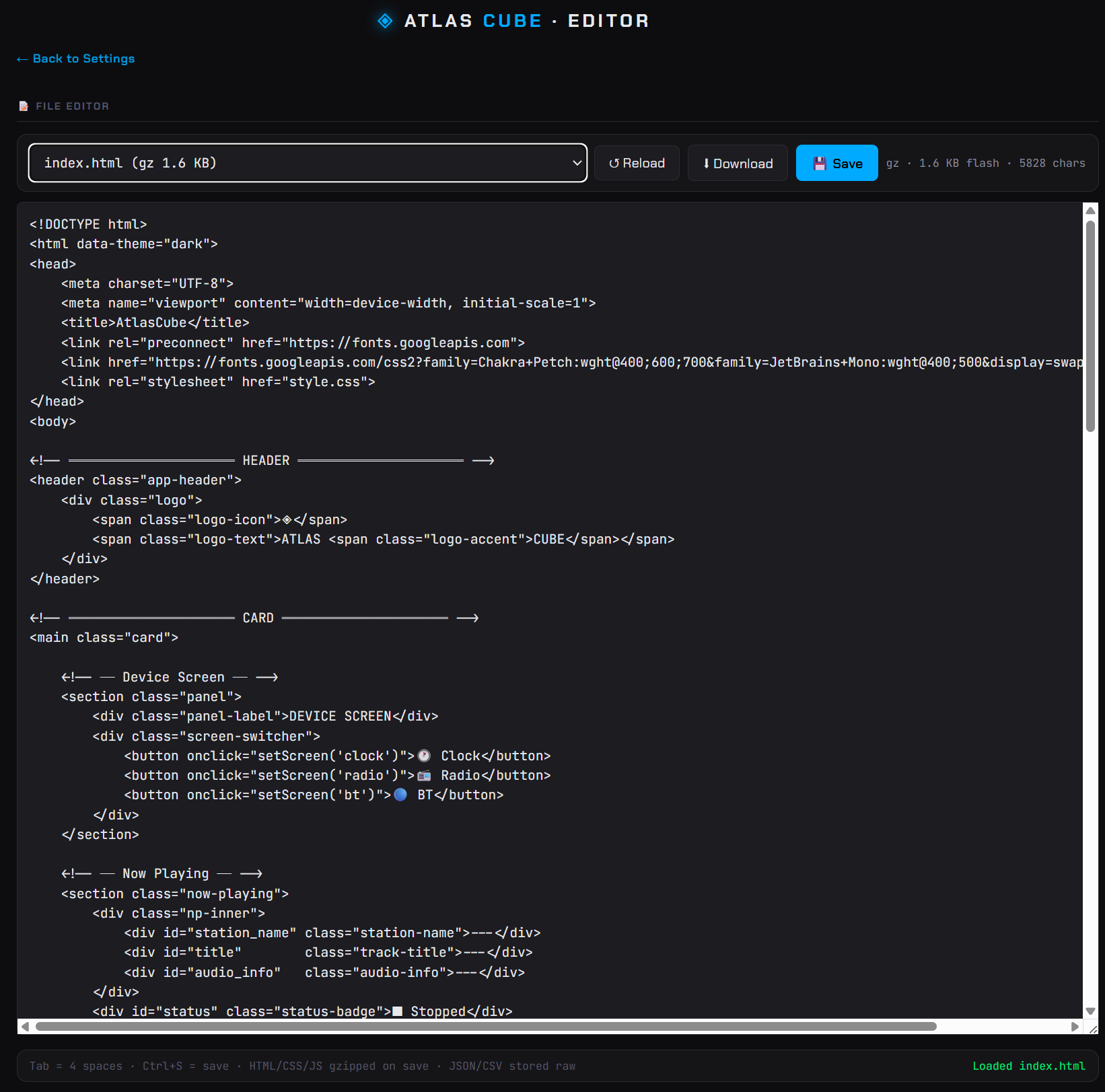
`/spiffs-editor.html` is an in-browser editor for the web UI files β HTML/CSS/JS and other text assets. It lists files from the `www` partition, lets you edit them with syntax highlighting, and saves back over HTTP without reflashing (HTML/CSS/JS are re-gzipped on the device). Useful for tweaking layouts or the web UI on a deployed device. The editor can also open the separate `config` partition (the settings JSON) for direct edits β handy for debugging β though normally those files are managed through their own screens (Settings, Events, MQTT, β¦).
---
## OTA updates
Update the firmware over Wi-Fi from **Settings β System** β no USB cable, no esptool. The page shows the running version, takes a firmware image, streams it to the device, and reboots into it. Progress is mirrored on the device screen.
**What it touches:**
| Partition | OTA touches it? | Notes |
|---|---|---|
| app (`ota_0` / `ota_1`) | β
writes the **inactive** slot, then switches boot | the only thing OTA writes |
| `www` (web UI) | β untouched | update separately (file editor / setup page / full reflash) |
| `config` (settings) | β untouched | your settings survive |
| bootloader + partition table | β untouched | can't be changed over OTA |
| NVS | β untouched | pin map (GPIO config) survives |
**How it flows:** `0xE9` magic check β `esp_ota_begin` erases the inactive slot β stream + `esp_ota_write` β `esp_ota_end` validates the checksum β `esp_ota_set_boot_partition` β reboot (bootloader rolls back if the new image won't start). The two app partitions live in [`partitions16MB.csv`](partitions16MB.csv); if no inactive slot is present the endpoint returns `501`.
**Which file:** upload the **app-only** image β either `AtlasCube--ota.bin` from the [latest Release](https://github.com/marcinozog/AtlasCube/releases/latest) (also linked from [atlascube.net/flash](https://atlascube.net/flash)) or your own `build/atlascube.bin` (~2.3 MB). *Not* the merged `AtlasCube-.bin`, which also contains the bootloader, partition table and the `www`/`config` partitions and is meant for a full `0x0` USB flash. Make sure the image matches your display variant; flashing a different variant's binary will break the UI.
**Adopting the layout:** switching an existing 16 MB device to the OTA partition layout is a one-time full USB reflash (a partition-table change can't go through OTA itself). After that, every further update is web-only.
**Safety:**
- The device stops playback during the write to free RAM and avoid flash/SPI contention.
- **Backup first:** the *Download image* button (`GET /api/ota/backup`) downloads the running app image as `atlascube-.bin` β the same format *Install image* accepts, so you can upload it again to roll back manually. Firmware only: settings, web UI files and WiFi credentials are not included.
When a firmware update also ships new web UI, OTA leaves the `www` partition as-is β the device notices the mismatch and offers to fix it with one press via the on-device **WEB UI OUTDATED** prompt (see [Automatic updates](#automatic-updates) below). Manual fallbacks still work: the **setup page** (`/setup`) shows a *web UI out of date* banner with a one-click link to the matching `AtlasCube-www.zip` from the latest release β extract it and upload the files there (include `www_version.txt` to clear the warning) β or edit/upload via the in-browser file editor (`/spiffs-editor.html`), or do a full `0x0` reflash.
---
## Automatic updates
The device also keeps itself current β no browser needed. On boot (Wi-Fi STA), it asks atlascube.net whether a newer release exists for its hardware variant (the request carries the variant, the running firmware version and an anonymous device id β no account, no personal data). Depending on the answer:
- **Newer firmware available** β a **NEW FIRMWARE** prompt with **Update / Later** buttons appears on the device screen. Confirming downloads the app-only image for the running variant over HTTPS and installs it through the same dual-slot OTA flow as above (settings and rollback included), then reboots.
- **Firmware current, web UI stale** β an app-only update never rewrites the `www` partition, so the web UI can lag behind. The device detects this and shows a **WEB UI OUTDATED** prompt instead; confirming pulls the fresh web files from the release package straight onto the `www` partition β in place, live, no reboot.
- **Later** dismisses the prompt until the next boot.
The on-screen prompt can be disabled in **Settings β System** (the boot version check itself still runs). Devices flashed before the updater shipped need one manual update (USB or the web OTA above) to pick it up; from then on they keep themselves up to date.
---
## Project docs
Architecture and design notes in [`docs/`](docs/):
- [`audio_pipeline.md`](docs/audio_pipeline.md) β streaming pipeline, DSP, TCP tuning, task affinity
- [`events.md`](docs/events.md) β reminder/event system design
- [`layout_editor.md`](docs/layout_editor.md) β UI layout customization
- [`wallpapers.md`](docs/wallpapers.md) β putting a wallpaper on a screen: online gallery, internet slots, SD files
- [`navigation.md`](docs/navigation.md) β screen map: the home ring, inputs (encoder/touch), how to edit it
- [`display_drivers.md`](docs/display_drivers.md) β display driver gotchas (QSPI AMOLED even-boundary, shared SPI mutex, LVGL buffer vs internal DRAM budget)
- [`ws_protocol.md`](docs/ws_protocol.md) β control protocol shared by the web UI, the Android app and the hardware remote (WS commands, state broadcast, REST)
---
## Roadmap
- **Enclosure** β 3D-printed case currently in design; firmware is developed and tested on the bare development board
- **Web melody editor** β in-browser tool for composing custom buzzer notification tunes
---
## License
MIT
### Third-party fonts
The UI ships glyphs from the following fonts, converted to LVGL bitmap format
(`components/ui/fonts/*.c`):
- **Montserrat** β Β© The Montserrat Project Authors, [SIL OFL 1.1](https://openfontlicense.org)
- **Font Awesome 5 Free** β Β© Fonticons, Inc., [SIL OFL 1.1](https://openfontlicense.org) (fonts) / [CC BY 4.0](https://creativecommons.org/licenses/by/4.0/) (icons)
- **Weather Icons** β Β© [Erik Flowers](https://erikflowers.github.io/weather-icons/), [SIL OFL 1.1](https://openfontlicense.org)