# AutoUpdater.NET
**Repository Path**: trusted-list/AutoUpdater.NET
## Basic Information
- **Project Name**: AutoUpdater.NET
- **Description**: AutoUpdater.NET is a class library that allows .NET developers to easily add auto update functionality to their classic desktop application projects.
- **Primary Language**: Unknown
- **License**: MIT
- **Default Branch**: master
- **Homepage**: None
- **GVP Project**: No
## Statistics
- **Stars**: 1
- **Forks**: 1
- **Created**: 2026-09-08
- **Last Updated**: 2026-10-17
## Categories & Tags
**Categories**: Uncategorized
**Tags**: None
## README
# 
[](https://ci.appveyor.com/project/ravibpatel/autoupdater-net)
AutoUpdater.NET is a class library that allows .NET developers to easily add auto-update functionality to their classic
desktop application projects.
## The NuGet Package [](https://www.nuget.org/packages/Autoupdater.NET.Official/) [](https://www.nuget.org/packages/Autoupdater.NET.Official/)
````powershell
PM> Install-Package Autoupdater.NET.Official
````
## Supported .NET versions
* .NET Framework 4.6.2 or above
* .NET Core 3.1
* .NET 5.0 or above
## Supported Windows versions
* Windows 8 or above
* Windows version lower than 8 requires .NET Framework 4.5 or above installed for ZipExtractor to work. You can use the
installer instead of a zip file as an update file to avoid this issue.
This library only works for WinForms or WPF application projects.
## How it works
AutoUpdater.NET downloads the XML file containing update information from your server. It uses this XML file to get the
information about the latest version of the software. If the latest version of the software is greater than the current
version of the software installed on the User's PC, then AutoUpdater.NET shows an update dialog to the user. If they
press the update button to update the software, then It downloads the update file (Installer) from URL provided in the
XML file and executes the installer file it just downloaded. It is the job of the installer after this point to carry
out the update. If you provide zip file URL instead of installer, then AutoUpdater.NET will extract the contents of the
zip file to the application directory.
## Using the code
### XML file
AutoUpdater.NET uses an XML file located on a server to get the release information about the latest version of the
software. You need to create an XML file like below, and then you need to upload it to your server.
````xml
-
2.0.0.0
https://rbsoft.org/downloads/AutoUpdaterTest.zip
https://github.com/ravibpatel/AutoUpdater.NET/releases
false
````
There are two things you need to provide in an XML file, as you can see above.
* version (Required): You need to provide the latest version of the application between version tags. Version should be
in X.X.X.X format.
* url (Required): You need to provide the URL of the latest version installer file or zip file between url tags.
AutoUpdater.NET downloads the file provided here and installs it when the user presses the Update button.
* changelog (Optional): You need to provide the URL to the change log of your application between changelog tags. If you
don't provide the URL of the changelog, then the update dialog won't show the change log.
* mandatory (Optional): You can set this to true if you don't want the user to skip this version. This will ignore
Remind Later and Skip options and hide both Skip and Remind Later buttons on the update dialog.
* mode (Attribute, Optional): You can provide a mode attribute on a mandatory element to change the behavior of the
mandatory flag. If you provide "1" as the value of the mode attribute, then it will also hide the Close button on
the update dialog. If you provide "2" as the value of the mode attribute, then it will skip the update dialog and
start downloading and updating the application automatically.
````xml
true
````
* minVersion (Attribute, Optional): You can also provide minVersion attribute on a mandatory element. When you
provide it, the Mandatory option will be triggered only if the installed version of the app is less than the
minimum version you specified here.
````xml
true
````
* executable (Optional): You can provide the path of the executable if it was changed in the update. It should be
relative to the installation directory of the application. For example, if the new executable is located inside the
bin folder of the installation directory, then you should provide it as shown below.
````xml
bin\AutoUpdaterTest.exe
````
* args (Optional): You can provide command line arguments for Installer between this tag. You can include %path% with
your command line arguments, it will be replaced by the path of the directory where the currently executing
application resides.
* checksum (Optional): You can provide the checksum for the update file between this tag. If you do this,
AutoUpdater.NET will compare the checksum of the downloaded file before executing the update process to check the
integrity of the file. You can provide an algorithm attribute in the checksum tag to specify which algorithm should be
used to generate the checksum of the downloaded file. Currently, MD5, SHA1, SHA256, SHA384, and SHA512 are supported.
````xml
Update file Checksum
````
You can also use the XML creator tool created by one of the users to create the XML file. You can download it
from [here](https://github.com/DwainSnickles/AutoUpdater.NET.XML-Creator-master/blob/master/AutoUpdaterXML.zip).
### Adding one line to make it work
After you are done creating and uploading the XML file, It is straightforward to add an auto-update functionality to
your application.
First, you need to add the following line at the top of your form.
````csharp
using AutoUpdaterDotNET;
````
Now you need to add the following line to your main form constructor or in Form_Load event. You can add this line
anywhere you like. If you don't like to check for update when the application starts, then you can create a Check for
update button and add this line to the Button_Click event.
````csharp
AutoUpdater.Start("https://rbsoft.org/updates/AutoUpdaterTest.xml");
````
Start method of AutoUpdater class takes the URL of the XML file you uploaded to the server as a parameter.
> AutoUpdater.Start should be called from the UI thread.
### Current version detection
AutoUpdater.NET uses Assembly version to determine the current version of the application. You can update it by going to
Properties of the project as shown in the following screenshot.
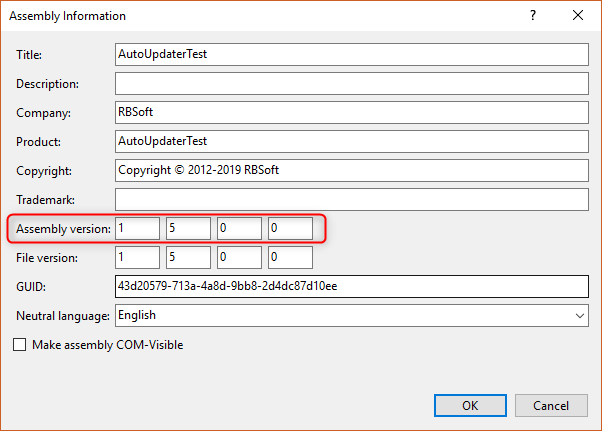
The version specified in the XML file should be higher than the Assembly version to trigger the update.
If you want to provide your own Assembly, then you can do it by providing the second argument of the Start method as
shown below.
````csharp
AutoUpdater.Start("https://rbsoft.org/updates/AutoUpdaterTest.xml", myAssembly);
````
## Configuration Options
### Provide the installed version manually
If you don't want AutoUpdater.NET to determine the installed version from assembly, then you can provide your own
version by assigning it to the InstalledVersion field as shown below.
````csharp
AutoUpdater.InstalledVersion = new Version("1.2");
````
### Download Update file and XML using FTP
If you like to use ftp XML URL to check for updates or download the update file, then you can provide your FTP
credentials in the alternative Start method as shown below.
````csharp
AutoUpdater.Start("ftp://rbsoft.org/updates/AutoUpdaterTest.xml", new NetworkCredential("FtpUserName", "FtpPassword"));
````
If you are using FTP download URL in the XML file, then credentials provided here will be used to authenticate the
request.
### Check for updates synchronously
If you want to check for updates synchronously, then set Synchronous to true before starting the update as shown below.
````csharp
AutoUpdater.Synchronous = true;
````
### Disable Skip Button
If you don't want to show the Skip button on the Update form, then just add the following line with the above code.
````csharp
AutoUpdater.ShowSkipButton = false;
````
### Disable Remind Later Button
If you don't want to show the Remind Later button on the Update form, then just add the following line with the above
code.
````csharp
AutoUpdater.ShowRemindLaterButton = false;
````
### Ignore previous Remind Later or Skip settings
If you want to ignore previously set Remind Later and Skip settings, then you can set Mandatory property to true. It
will also hide the Skip and Remind Later button. If you set Mandatory to true in code, then the value of Mandatory in
your XML file will be ignored.
````csharp
AutoUpdater.Mandatory = true;
````
### Forced updates
You can enable forced updates by setting Mandatory property to true and setting UpdateMode to value of `Mode.Forced` or
`Mode.ForcedDownload`. `Mode.Forced` option will hide Remind Later, Skip, and Close buttons on the standard update
dialog. `Mode.ForcedDownload` option will skip the standard update dialog and start downloading and updating the
application without user interaction. `Mode.ForceDownload` option will also ignore the value of the OpenDownloadPage
flag.
````csharp
AutoUpdater.Mandatory = true;
AutoUpdater.UpdateMode = Mode.Forced;
````
### Basic Authentication
You can provide Basic Authentication for XML, Update a file, and Change Log as shown in the below code.
````csharp
BasicAuthentication basicAuthentication = new BasicAuthentication("myUserName", "myPassword");
AutoUpdater.BasicAuthXML = AutoUpdater.BasicAuthDownload = AutoUpdater.BasicAuthChangeLog = basicAuthentication;
````
### Set User-Agent for http web requests
Set the User-Agent string to be used for HTTP web requests so you can differentiate them in your web server request
logs.
````csharp
AutoUpdater.HttpUserAgent = "AutoUpdater";
````
### Enable Error Reporting
You can turn on error reporting by adding the below code. If you do this, AutoUpdater.NET will show an error message if
there is no update available or if it can't get to the XML file from the web server.
````csharp
AutoUpdater.ReportErrors = true;
````
### Run the update process without Administrator privileges
If your application doesn't need administrator privileges to replace the old version, then you can set RunUpdateAsAdmin
to false.
````csharp
AutoUpdater.RunUpdateAsAdmin = false;
````
### Open Download Page
If you don't want to download the latest version of the application and just want to open the URL between url tags of
your XML file, then you need to add the following line with the above code.
````csharp
AutoUpdater.OpenDownloadPage = true;
````
This kind of scenario is useful if you want to show some information to users before they download the latest version of
the application.
### Remind Later
If you don't want users to select Remind Later time when they press the Remind Later button of the update dialog, then
you need to add the following lines with the above code.
````csharp
AutoUpdater.LetUserSelectRemindLater = false;
AutoUpdater.RemindLaterTimeSpan = RemindLaterFormat.Days;
AutoUpdater.RemindLaterAt = 2;
````
In the above example, when a user presses the Remind Later button of the update dialog, It will remind the user for
update after 2 days.
### Proxy Server
If your XML and Update file can only be used from a certain Proxy Server, then you can use the following settings to
tell AutoUpdater.NET to use that proxy. Currently, if your Changelog URL is also restricted to Proxy server, then you
should omit the changelog tag from the XML file cause it is not supported using Proxy Server.
````csharp
var proxy = new WebProxy("ProxyIP:ProxyPort", true)
{
Credentials = new NetworkCredential("ProxyUserName", "ProxyPassword")
};
AutoUpdater.Proxy = proxy;
````
### Specify where to download the update file
You can specify where you want to download the update file by assigning the DownloadPath field as shown below. It will
be used for ZipExtractor too.
````csharp
AutoUpdater.DownloadPath = Application.StartupPath;
````
### Specify where to extract the zip file containing updated files
If you are using a zip file as an update file, then you can set the "InstallationPath" equal to the path where your app
is installed. This is only necessary when your installation directory differs from your executable path. Make sure the
directory you specify exists before assigning it to the InstallationPath field.
````csharp
AutoUpdater.InstallationPath = Application.StartupPath;
````
### Specify a relative path to the executable you want to execute after the update
If you are using a zip file as an update file, then you can set "ExecutablePath" equal to a new executable path relative
to the installation directory. This is only necessary if your new executable path differs from the current executable
path. The "executable" value defined in XML takes precedence over this value.
````csharp
AutoUpdater.ExecutablePath = "bin\\AutoUpdater.exe";
````
### Clear the application directory before extracting the update file
Sometimes it is necessary to clear previous version files before doing an update. In this case, you can specify whether
to clear the application directory before extracting the update file using the below code.
````csharp
AutoUpdater.ClearAppDirectory = true;
````
### Specify the size of the UpdateForm
You can specify the size of the update form by using the below code.
````csharp
AutoUpdater.UpdateFormSize = new System.Drawing.Size(800, 600);
````
### Change Icon of the UpdateForm
You can change the icon of the update form by using the below code. It assumes that you have an image resource named
Icon in your project. The size of an icon file should be 64x64.
````csharp
AutoUpdater.Icon = Resources.Icon;
````
### Set the owner Form / Window
To ensure the dialogs showed by the auto updater are visible and always focused correctly related to an application Form
or Window, it may be necessary to set an owner. You can assign a Form or WPF Window as the owner by following the
example below.
````csharp
AutoUpdater.SetOwner(yourMainFormOrWpfWindow);
````
### Set the TopMost property of all updater dialogs
To ensure that the dialogs displayed by the auto updater are always on top, you can set the "TopMost" to true, as
demonstrated in the code snippet below.
````csharp
AutoUpdater.TopMost = true;
````
### Change storage method of Remind Later and Skip options
You can change how AutoUpdater.NET saves the Remind Later and Skip values by assigning the PersistenceProvider. If you
don't provide a PersistenceProvider, then it will save the values in the Windows registry.
If you are using .NET 4.0 or above, then you can use JsonFilePersistenceProvider instead of the default
RegistryPersistenceProvider as shown below.
````csharp
string jsonPath = Path.Combine(Environment.CurrentDirectory, "settings.json");
AutoUpdater.PersistenceProvider = new JsonFilePersistenceProvider(jsonPath);
````
You can create your own PersistenceProvider by
implementing [IPersistenceProvider](https://github.com/ravibpatel/AutoUpdater.NET/blob/master/AutoUpdater.NET/IPersistenceProvider.cs)
interface.
## Check updates frequently
You can call the Start method inside Timer to check for updates frequently.
### WinForms
````csharp
System.Timers.Timer timer = new System.Timers.Timer
{
Interval = 2 * 60 * 1000,
SynchronizingObject = this
};
timer.Elapsed += delegate
{
AutoUpdater.Start("https://rbsoft.org/updates/AutoUpdaterTest.xml");
};
timer.Start();
````
### WPF
````csharp
DispatcherTimer timer = new DispatcherTimer {Interval = TimeSpan.FromMinutes(2)};
timer.Tick += delegate
{
AutoUpdater.Start("https://rbsoft.org/updates/AutoUpdaterTestWPF.xml");
};
timer.Start();
````
## Handling Application exit logic manually
If you like to handle Application exit logic yourself, then you can use ApplicationExitEvent like below. This is
invaluable if you like to do something before closing the application.
````csharp
AutoUpdater.ApplicationExitEvent += AutoUpdater_ApplicationExitEvent;
private void AutoUpdater_ApplicationExitEvent()
{
Text = @"Closing application...";
Thread.Sleep(5000);
Application.Exit();
}
````
## Handling updates manually
Sometimes as a developer you need to maintain the look and feel of the entire application similarly, or you need to do
something before update. In this type of scenarios you can handle the updates manually by subscribing to an event. You
can do it by adding the following line with the above code.
````csharp
AutoUpdater.CheckForUpdateEvent += AutoUpdaterOnCheckForUpdateEvent;
private void AutoUpdaterOnCheckForUpdateEvent(UpdateInfoEventArgs args)
{
if (args.Error == null)
{
if (args.IsUpdateAvailable)
{
DialogResult dialogResult;
if (args.Mandatory.Value)
{
dialogResult =
MessageBox.Show(
$@"There is new version {args.CurrentVersion} available. You are using version {args.InstalledVersion}. This is required update. Press Ok to begin updating the application.", @"Update Available",
MessageBoxButtons.OK,
MessageBoxIcon.Information);
}
else
{
dialogResult =
MessageBox.Show(
$@"There is new version {args.CurrentVersion} available. You are using version {
args.InstalledVersion
}. Do you want to update the application now?", @"Update Available",
MessageBoxButtons.YesNo,
MessageBoxIcon.Information);
}
// Uncomment the following line if you want to show standard update dialog instead.
// AutoUpdater.ShowUpdateForm(args);
if (dialogResult.Equals(DialogResult.Yes) || dialogResult.Equals(DialogResult.OK))
{
try
{
if (AutoUpdater.DownloadUpdate(args))
{
Application.Exit();
}
}
catch (Exception exception)
{
MessageBox.Show(exception.Message, exception.GetType().ToString(), MessageBoxButtons.OK,
MessageBoxIcon.Error);
}
}
}
else
{
MessageBox.Show(@"There is no update available please try again later.", @"No update available",
MessageBoxButtons.OK, MessageBoxIcon.Information);
}
}
else
{
if (args.Error is WebException)
{
MessageBox.Show(
@"There is a problem reaching update server. Please check your internet connection and try again later.",
@"Update Check Failed", MessageBoxButtons.OK, MessageBoxIcon.Error);
}
else
{
MessageBox.Show(args.Error.Message,
args.Error.GetType().ToString(), MessageBoxButtons.OK,
MessageBoxIcon.Error);
}
}
}
````
When you do this, it will execute the code in the above event when the AutoUpdater.Start method is called instead of
showing the update dialog.
* IsUpdateAvailable (bool): If the update is available, then returns true otherwise false.
* DownloadURL (string): The Download URL of the update file.
* ChangelogURL (string): URL of the webpage specifying changes in the new update.
* CurrentVersion (Version): The newest version of the application is available to download.
* InstalledVersion (Version): Version of the application currently installed on the user's PC.
* Mandatory (Mandatory): Shows if the update is required or optional.
## Handling parsing logic manually
If you want to use another format instead of XML as an AppCast file, then you need to handle the parsing logic by
subscribing to ParseUpdateInfoEvent. You can do it as follows.
````csharp
AutoUpdater.ParseUpdateInfoEvent += AutoUpdaterOnParseUpdateInfoEvent;
AutoUpdater.Start("https://rbsoft.org/updates/AutoUpdaterTest.json");
private void AutoUpdaterOnParseUpdateInfoEvent(ParseUpdateInfoEventArgs args)
{
dynamic json = JsonConvert.DeserializeObject(args.RemoteData);
args.UpdateInfo = new UpdateInfoEventArgs
{
CurrentVersion = json.version,
ChangelogURL = json.changelog,
DownloadURL = json.url,
Mandatory = new Mandatory
{
Value = json.mandatory.value,
UpdateMode = json.mandatory.mode,
MinimumVersion = json.mandatory.minVersion
},
CheckSum = new CheckSum
{
Value = json.checksum.value,
HashingAlgorithm = json.checksum.hashingAlgorithm
}
};
}
````
### JSON file used in the Example above
````json
{
"version":"2.0.0.0",
"url":"https://rbsoft.org/downloads/AutoUpdaterTest.zip",
"changelog":"https://github.com/ravibpatel/AutoUpdater.NET/releases",
"mandatory":{
"value":true,
"minVersion": "2.0.0.0",
"mode":1
},
"checksum":{
"value":"E5F59E50FC91A9E52634FFCB11F32BD37FE0E2F1",
"hashingAlgorithm":"SHA1"
}
}
````
## Steps to build it for further development
You can follow the below steps to build the project on your local development environment.
* Disable signing from project properties of both AutoUpdater.NET and ZipExtractor.
* Edit both .csproj files of AutoUpdater.NET and ZipExtractor and change the following line. Use the .NET version you
prefer.
Before
```xml
net462;netcoreapp3.1;net5.0-windows
```
After
```xml
net5.0-windows
```
* Build ZipExtractor project in "Release" configuration to create the executable in the Resources folder. While
compiling it for .NET Core 3.1 or above, you have to use publish command instead of build as
shown [here](https://learn.microsoft.com/en-us/dotnet/core/tutorials/publishing-with-visual-studio?pivots=dotnet-7-0)
and copy the resulting executable to the "AutoUpdater.NET/Resources" folder.
* Visual Studio 2026 doesn't allow building .NET Framework 4.5 by default, so if you are using Visual Studio 2022, then
you can change it to any supported .NET version, or you have to follow steps
from [here](https://stackoverflow.com/a/70109092/1273550) to use .NET Framework 4.5.